Agreements form from version 2.18
Before version 2.18, we create new agreements and handle all the agreement settings from the grid list page and adding the lines for self-billing invoices and if specific agreements have different amount per invoice.
After upgrading to ExFlow AP version 2.18, customers may notice changes in how invoices are matched against their existing matching rules. This is due to major updates introduced in the release, including the requirement that the agreement number field must now be populated. During the upgrade, an automatic script assigns system‑generated agreement numbers (formatted as VendAccount-1, VendAccount-2, VendAccount-3) to all records where the agreement number was previously blank. Since the matching logic now considers the agreement field as mandatory, matching results may differ compared to earlier versions that can cause issues, a change for the matching rules will be released in a patch end of March.
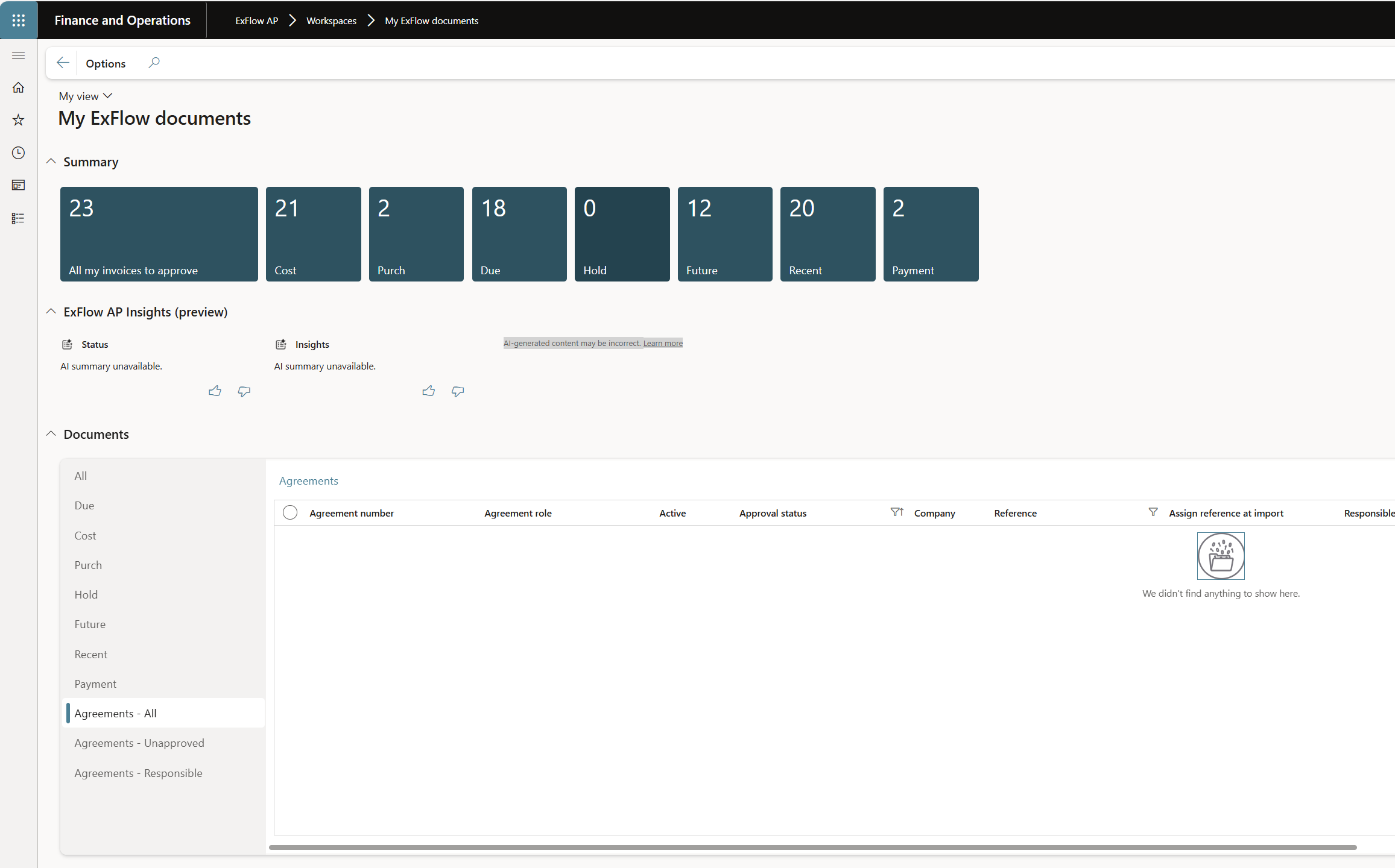
From version 2.18 released January 2026, the Agreement form has been redesigned of grid list page with agreement link to the detailed agreement view page, where user can add lines to agreement and view/edit all the values on the header as well.
Agreements grid list page with link to agreement detailed page.
The agreement process are same as before (versions before 2.18).
-
Invoice matching against agreement priorities
Vendor + Agreement number + Reference
Vendor + Agreement number
Vendor + Reference -
Click on agreement link shown in below screenshot to reach the detailed form.
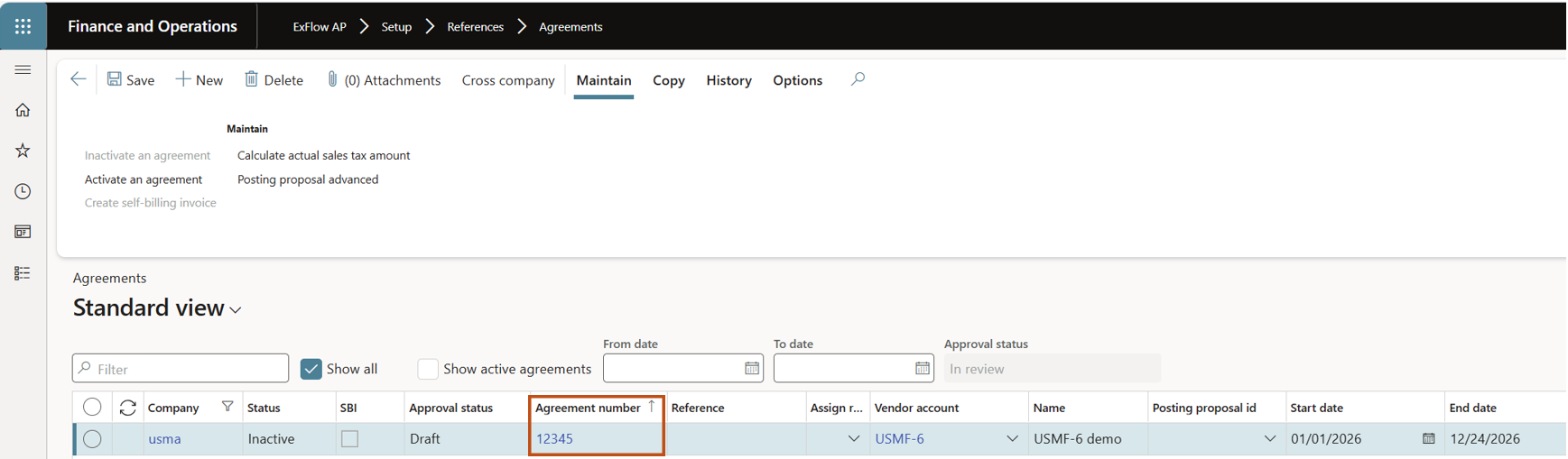
-
In the detailed form user can add lines for using tolerances per invoice or using the lines for creation of Self-billing invoices see more details under https://docs.signupsoftware.com/finance-operations/docs/user-manual/agreements/self-billig-invoice,
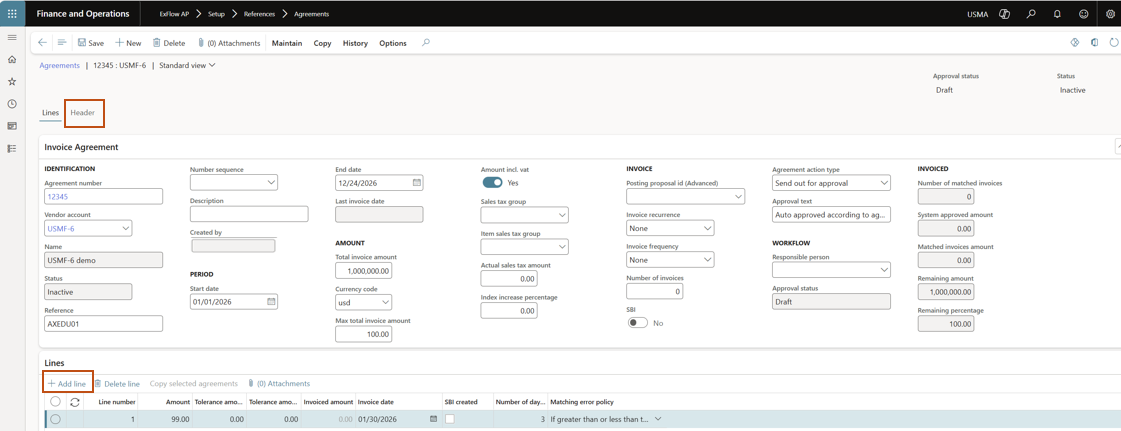
-
in the Header view, the user can only see header values for the agreement.
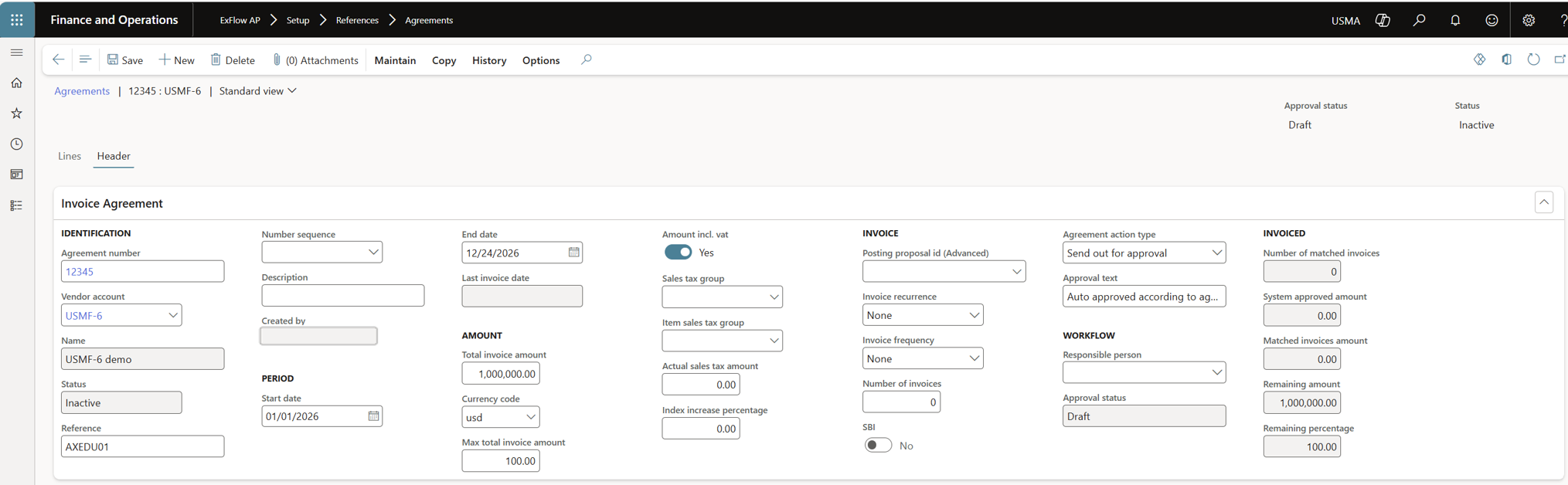
To activate the agreement
In the process are how to activate the agreement.
- Select maintain and "Activate an agreement".
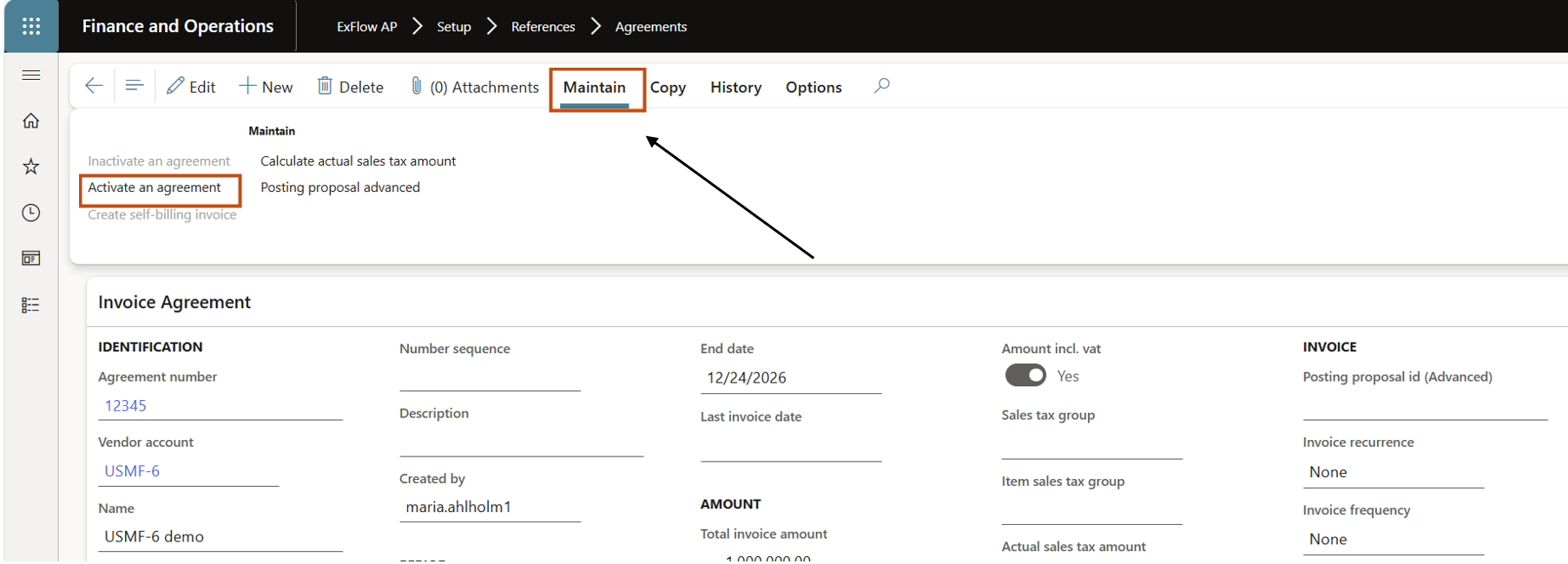
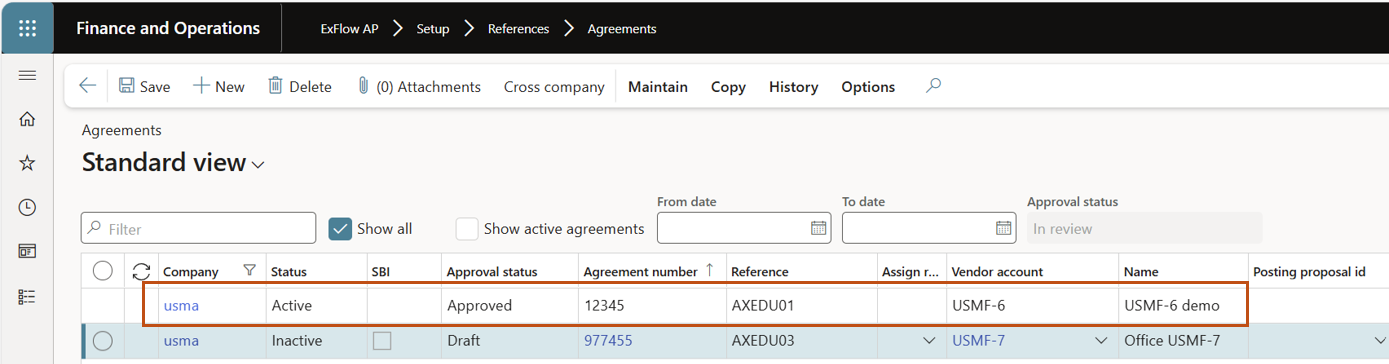
Agreement is activated:
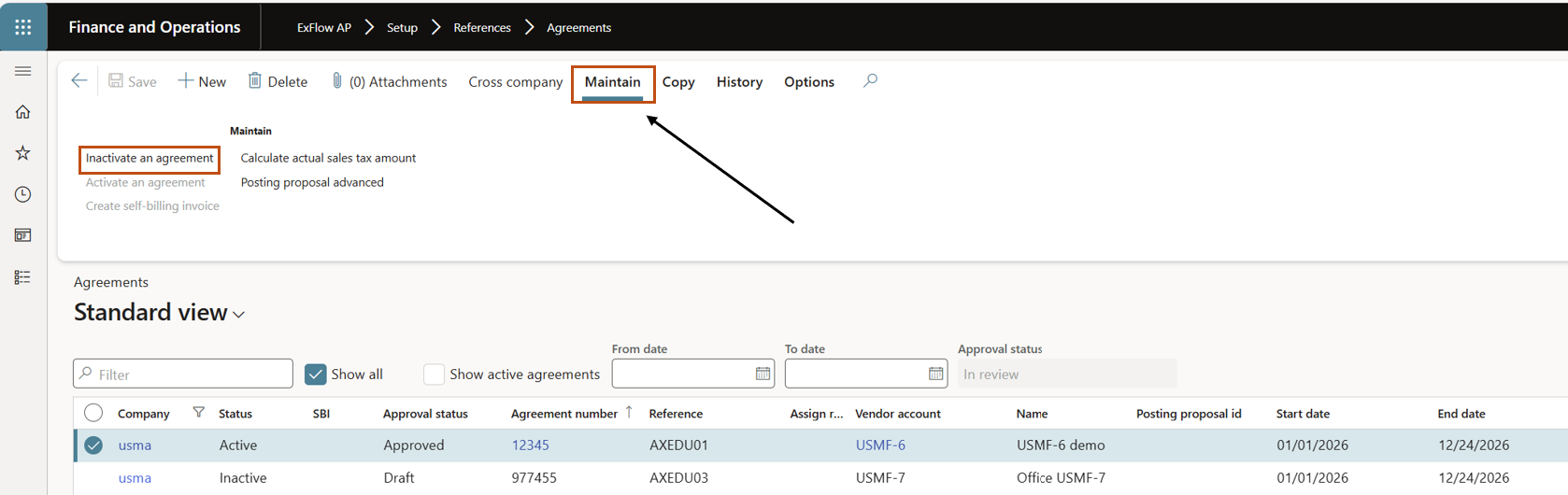
To inactivate an active agreement
In the process are how to inactivate the agreement.
- Select maintain and "Inactivate an agreement".
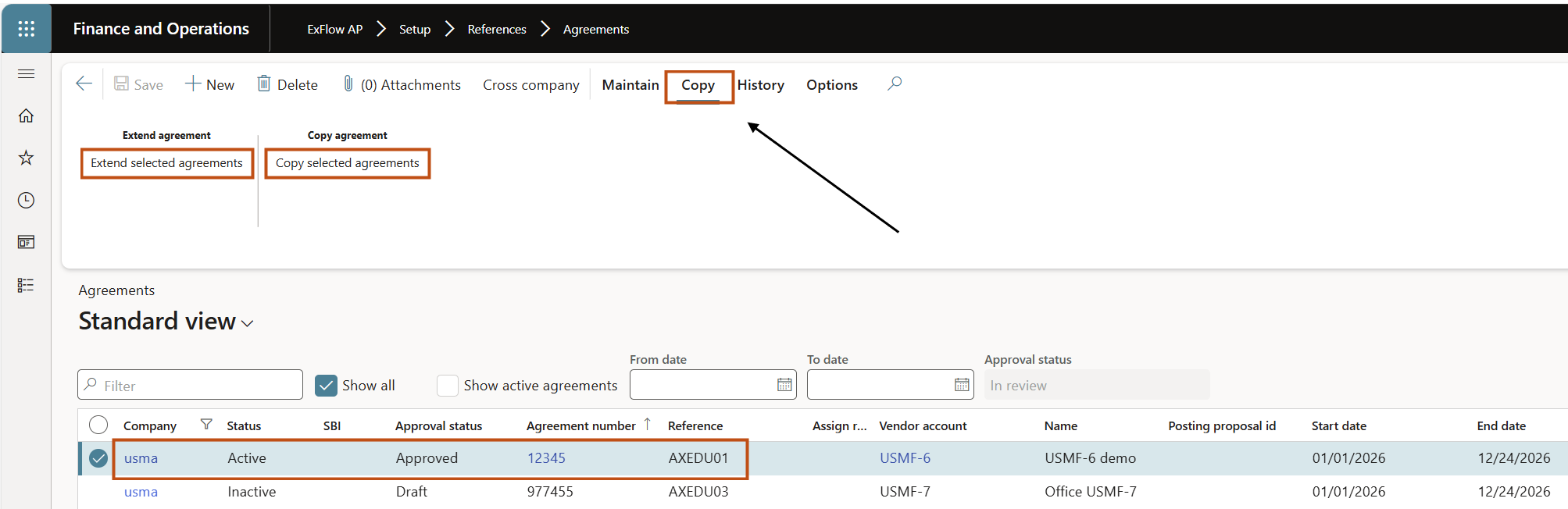
To extend or copy an agreement
- The agreement should be approved and active.
| Buttons (Action pane) | |
|---|---|
| Save | Save |
| New | Add a new Agreement. |
| Delete | Delete the selected Agreement. |
| Attachments | View the marked agreements attachments. |
| Cross company | Show agreements in cross company view |
| Workflow | If activated - ExFlow workflow for agreement approval. |
| Maintain Inactivate an agreement | This button will be active for agreements that are active and greyed out for agreements that are inactive. It is possible to select one or multiple agreements to inactivate. |
| Maintain Activate an agreement | This button will tick the active box. This will only tick the active check box for approved agreements if the ExFlow agreement workflow is activated, otherwise (No workflow is used) it will be available for all inactive agreements. This button will be active for agreements that are inactive and greyed out for agreements that are active. It is possible to select one or multiple agreements to activate. |
| Maintain Create self-billing invoice | Will only be active if the selected agreement has one and only one attachment of the type "self-billing invoice image". A new invoice will be automatically created with the image and based on the line attached to the main agreement. The invoice will after the creation be ready to be imported in ExFlow import form along with the other vendor invoices. |
| Maintain Calculate actual sales tax amount | To calculate actual sales tax amount for SBI |
| Maintain Posting proposal advanced | Link to posting proposal advanced form |
| Copy Extend selected agreement | Extend the selected agreement with a new time period. A new window will open and for date selections. |
| Copy Copy selected agreement | A new agreement(s) will be created that are copied of the selected agreement(s), but they will not be marked as active. |
| History Agreement history | Display’s the invoice transactions and invoice images posted against the actual Agreement. |
To perform approval actions on the agreements
There is new tabs place added to perform approval actions for the agreements under, My ExFlow Documents.
The forms also include a direct link into the Agreements form.
- Agreements - All
- Agreements - Unapproved
- Agreements - Responsible