Import OCR invoices to import form
ExFlow | Periodic tasks | Import | Import OCR invoices to import form
This job is normally set up with a recurrence of every 10-20 minutes or more seldom and "replaces" clicking on the OCR-import icon in the Import form.
Import OCR invoices to import form - threads
ExFlow | Periodic tasks | Import | Import OCR invoices to import form - threads
The Import OCR invoices to import form - threads batch job imports invoices in ExFlow from Import history to the Import table. It imports vendor data, invoice data and sales tax data, sets the reference and approvers, runs invoice matching and reviews the invoice checks before import. For PO invoices, it automatically updates the PO header and line details.
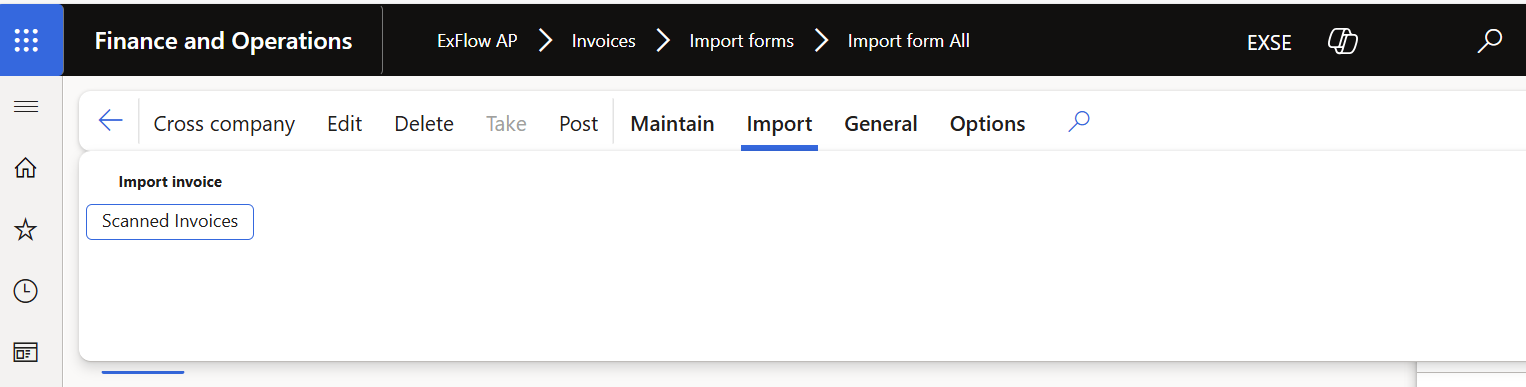
You can also run the import manually from the action menu in the Import form: Import > Import invoice > Scanned Invoices.
To run the batch job in all companies, turn on Run the job in all companies.
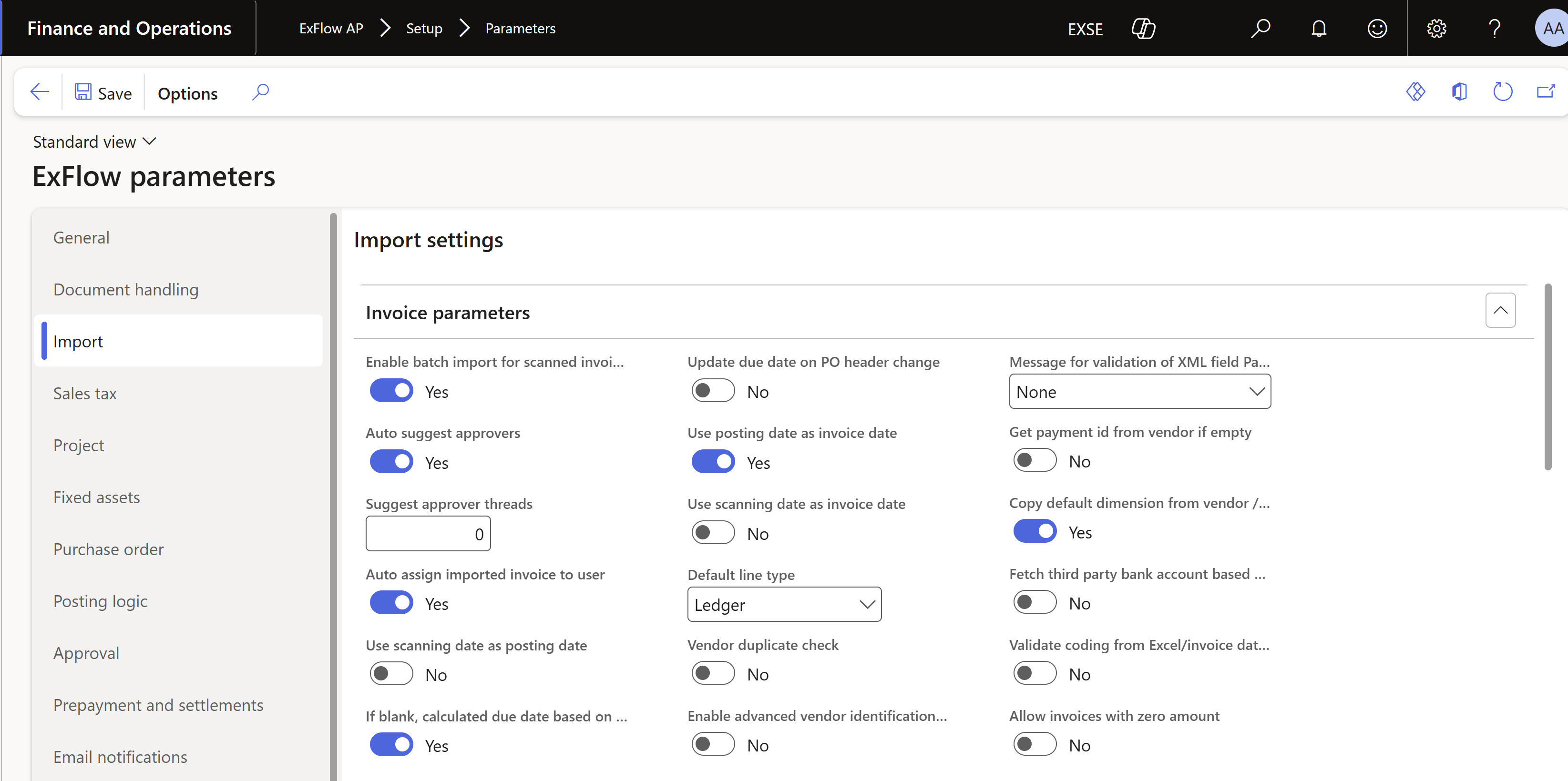
This only works for companies where the parameter Enable batch import for scanned invoices is turned on. You find it in ExFlow AP > Setup > Parameters > Import.
Performance settings
| Field | Description |
|---|---|
| Documents / task | The number of documents in each task of the batch. |
| Number of invoices | The total number of invoices to import in the batch. |
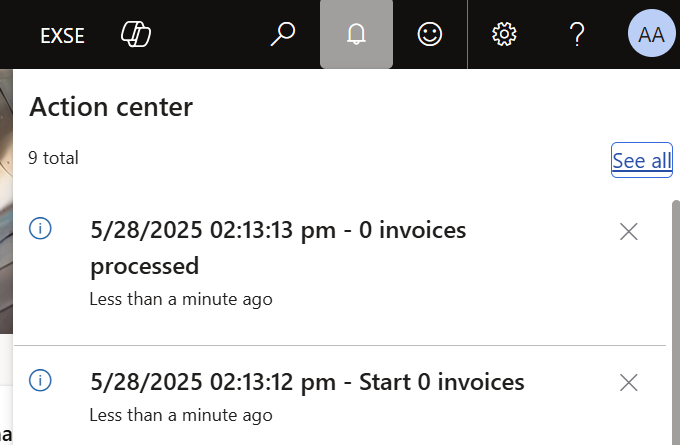
| Infolog | If turned on, a log statement is created for the invoices in the batch job. At the start, the Infolog shows the start date, start time and the number of invoices to import. At the end of the process, it shows the end date, end time and the number of invoices processed. |
Documents / task and Number of invoices can only contain positive numbers. Our recommendation is usually 10 documents per task. The number of tasks then depends on how many batch AOS instances you want to utilize.
Records to include
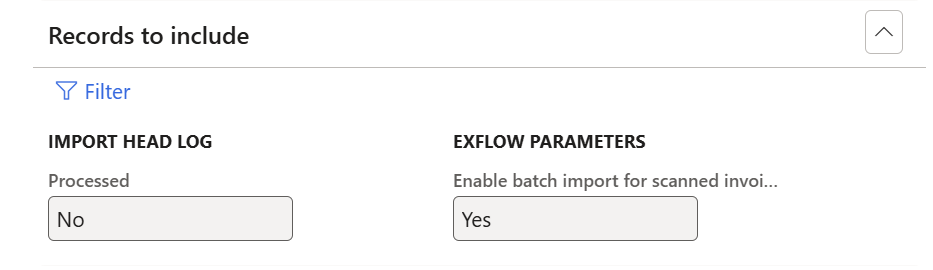
The filter uses the Import head log table to select which header records to import. You can adjust the criteria on the Range, Sorting, Company range and Joins tabs.
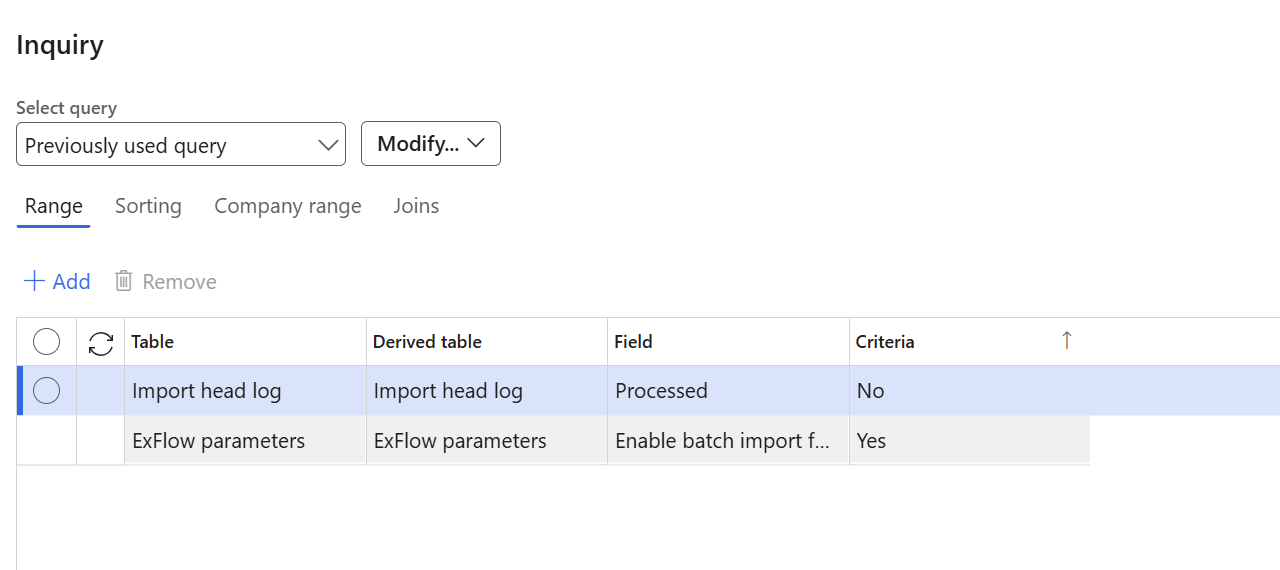
In the Select query list, you can select the previously used query or a query that you have created yourself.
When the filter is set, a summary of the selected tables, their fields and the criteria is shown under the Filter button.
Run in the background
On this tab you set up the batch processing, for example time and frequency:
- Recurrence - set how often the batch job runs.
- Alerts - set which notifications you get for the batch job and how they are shown.
- You can also add a Batch group and a Monitoring category, and mark the batch job as Private or Critical job.
The settings depend on the requirements of each customer.
This batch job replaces Import OCR invoices to import form in June 2025.