Deferral functionality
Introduction
Revenue and expense deferrals are implemented in an organization’s billing schedule to distribute expenses over certain periods of time.
Limitations
Due to standard D365 functionality, this function will only work in the Direct posting process via ExFlow.
Deferral functionality only works and are visible for expense invoice with line type Ledger.
From the major release 2.18 the functionality is supporting Ledger and Item (Cost and PO invoices).
Setup in D365FO
Enable the feature for Subscription billing
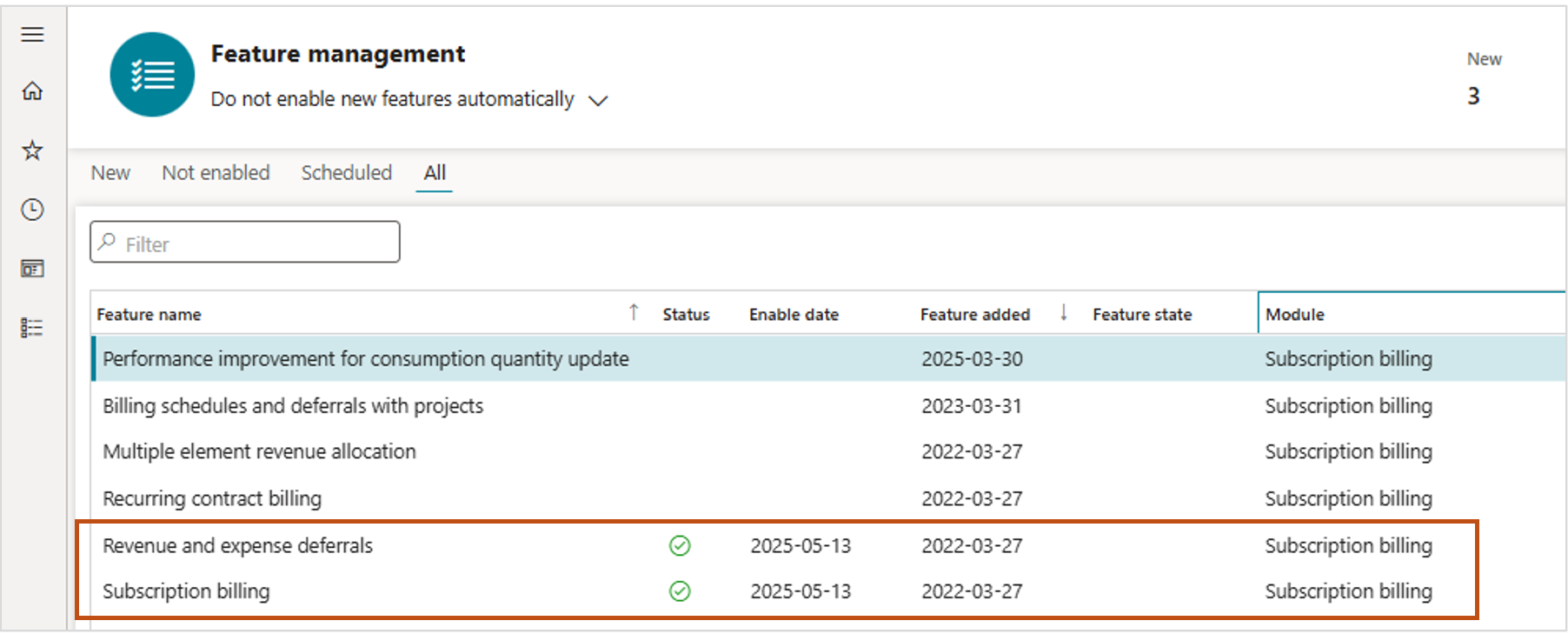
Enable the feature for Subscription billing in the workspace Feature management.
Feature ‘Subscription billing’ is the main feature and the first version with expense the feature ‘Revenue and expense deferrals’ must be enabled.
This feature will enable new module in main menu ‘Subscription billing’
Deferral templates
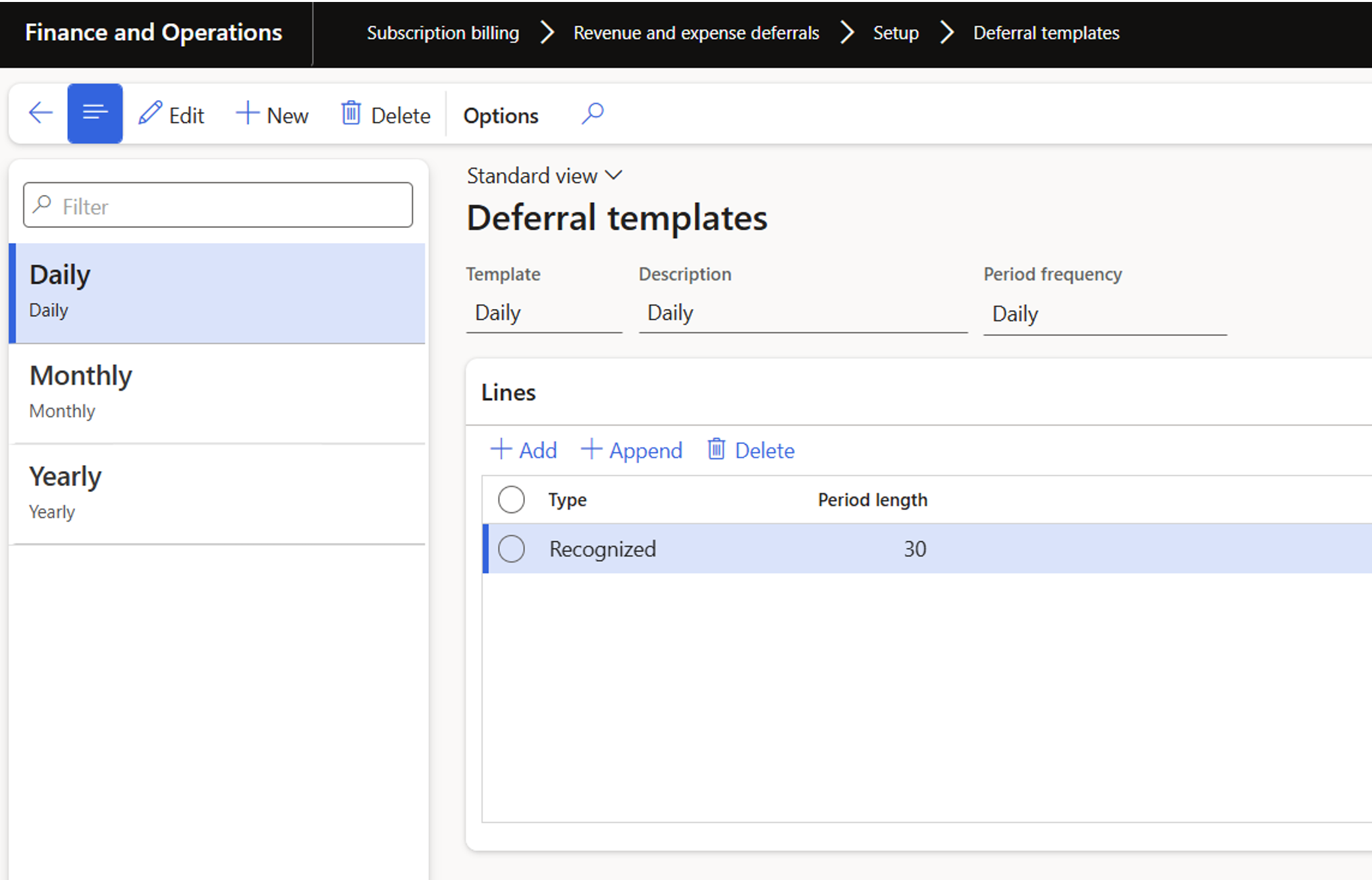
Subscription billing | Revenue and expense deferrals | Setup | Deferral templates
Use the Deferral templates page to define straight-line templates that are used for deferral schedules.
Deferral defaults
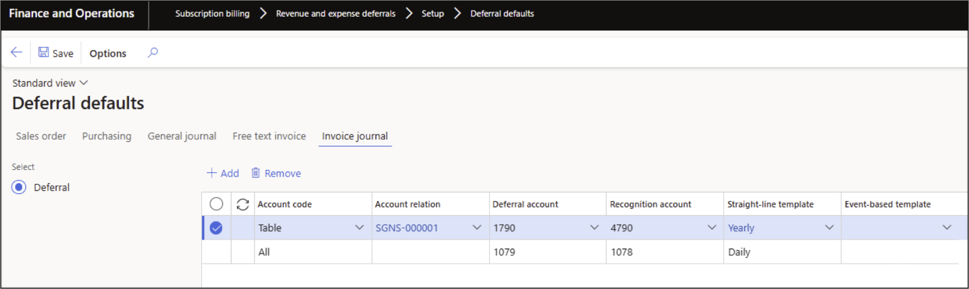
Subscription billing | Revenue and expense deferrals | Setup | Deferral Defaults
Ledger – Using Invoice Journal
For general journals, you can specify the deferral accounts. When these accounts are used on a transaction line, the transaction is automatically marked as deferred.
The corresponding template and recognition account will be assigned to the transaction line.
Straight-line template can be setup in Deferral templates.
Settings for Invoice journal is used in deferrals for ExFlow. This will be the same as used in invoice journal for direct posting.
Item – Using Purchasing
For purchase invoices and line type Item, settings for Purchasing/Deferred expense are used.
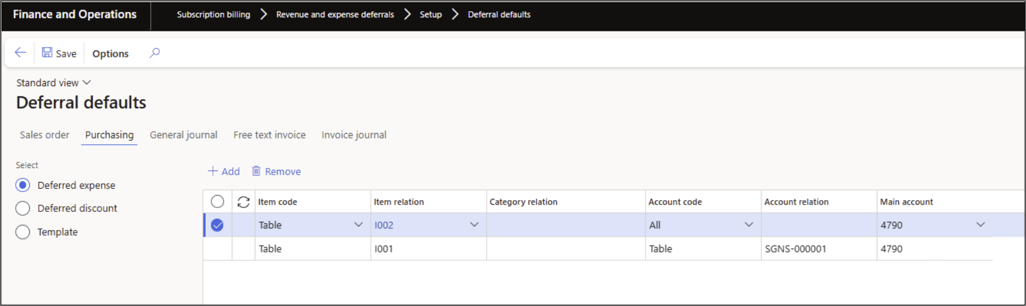
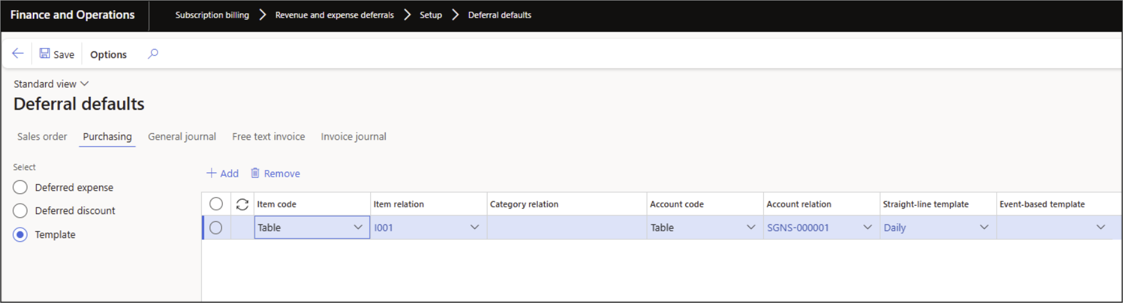
Template for Purchasing is set up in the template selection.
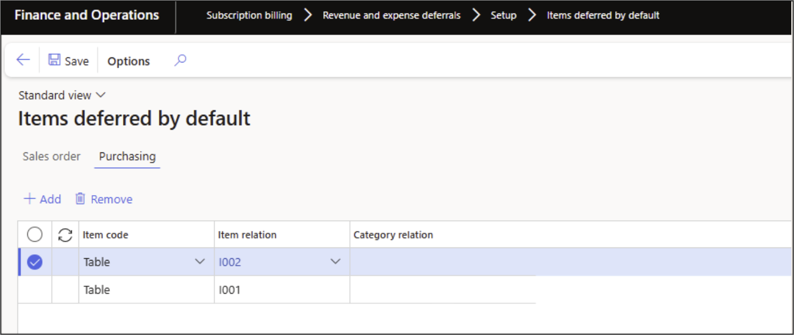
Items Deferred by Default
Subscription billing | Revenue and expense deferrals | Setup | Items deferred by default
When a line is created for an item, and setup is done here, a deferral is created after import in ExFlow.
If not set up in here, no deferral is created after import.
But if a user selects to defer manually, and there are settings that corresponds with the item, a deferral is created.
Post Purchase order invoice
When posting an approved purchase invoice, a pending invoice is opened.
The deferrals are visible below the buttons on Header
Financial > Accounting > View distributions and on Lines > Financial > Distribute amounts.
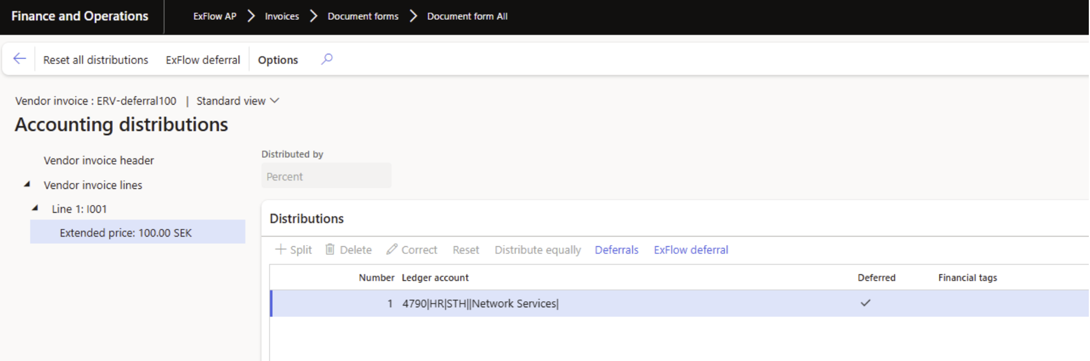
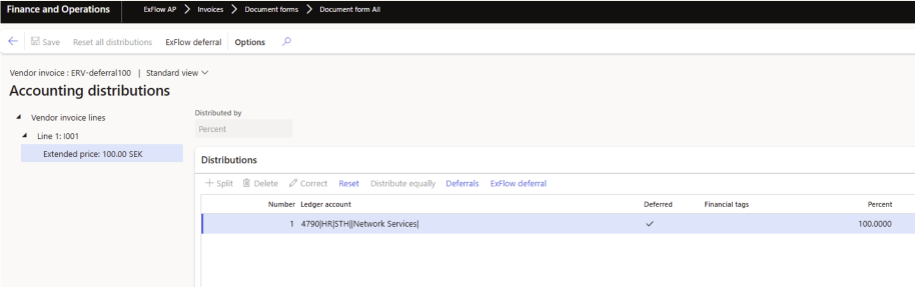
The distributions can be reset to remove any changes by clicking on "Reset all distributions".
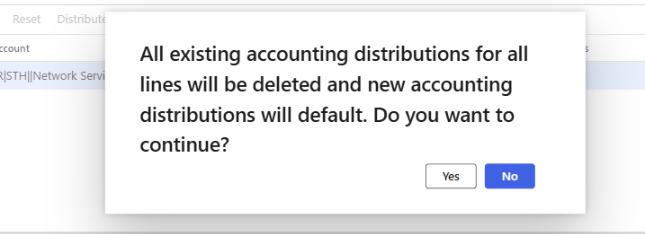
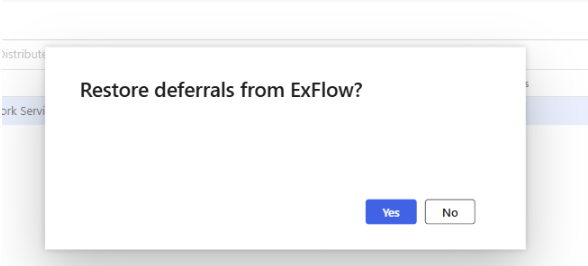
It will also give the user the opportunity to restore the values for deferrals set in ExFlow during the approving stage.
This can be done by clicking on the button ‘ExFlow deferral’, for all lines or just for the specific line.
Setup for ExFlow
Configuration
ExFlow AP | Setup | Configuration | Add/delete columns
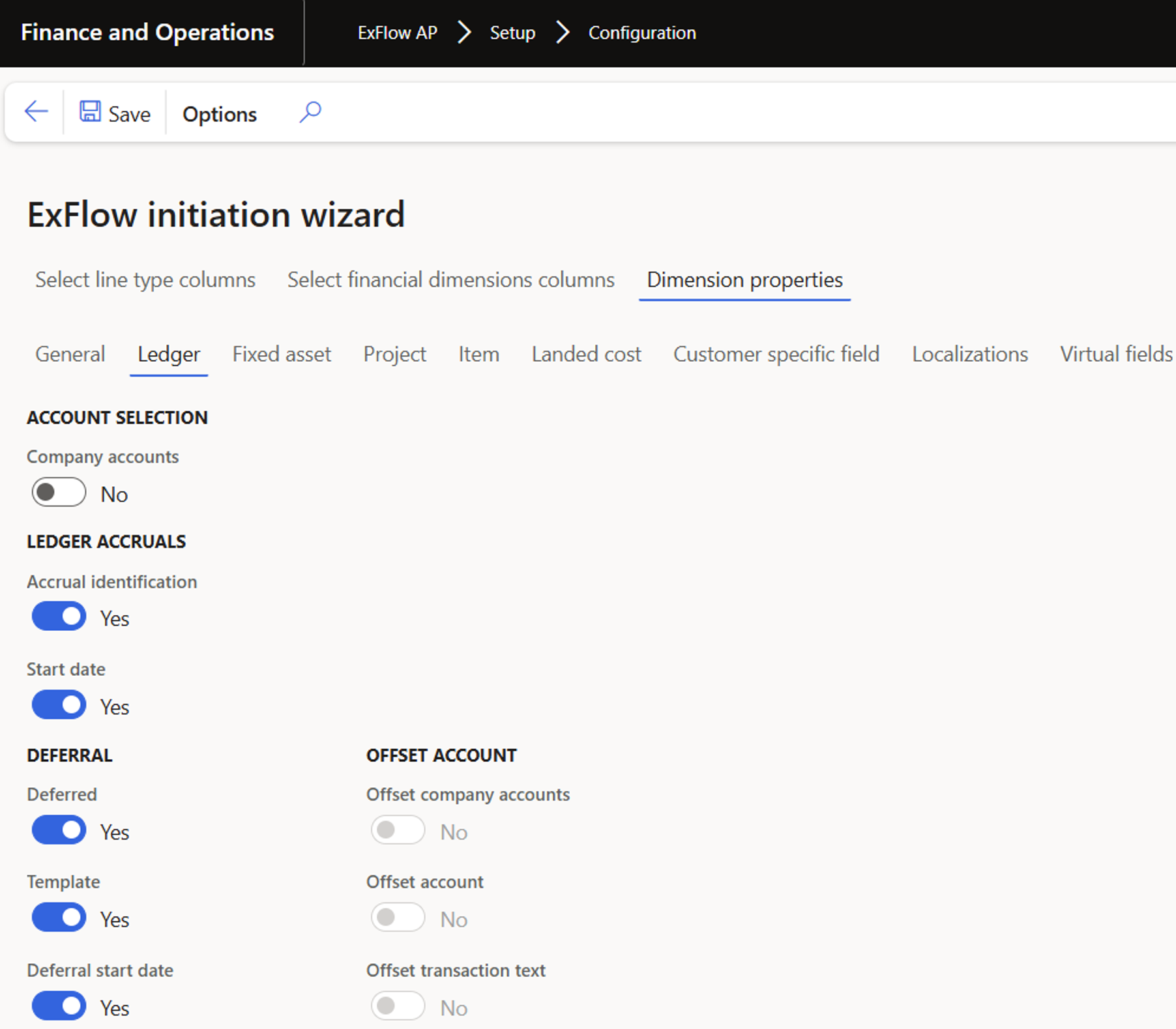
- Enable the fields under DEFERRAL.
Please note: The fields are only visible if the company is using the Direct posting process.
Visibility in configuration
After deferral is enabled in the ExFlow initiation wizard, three (3) lines appears in configuration overview.

Usage
Import form
In combination with Vendor on header and account number on the line, a search is done if there is any hit in Deferral default. If hit, a record is created in deferrals, and the display field for deferral is checked.
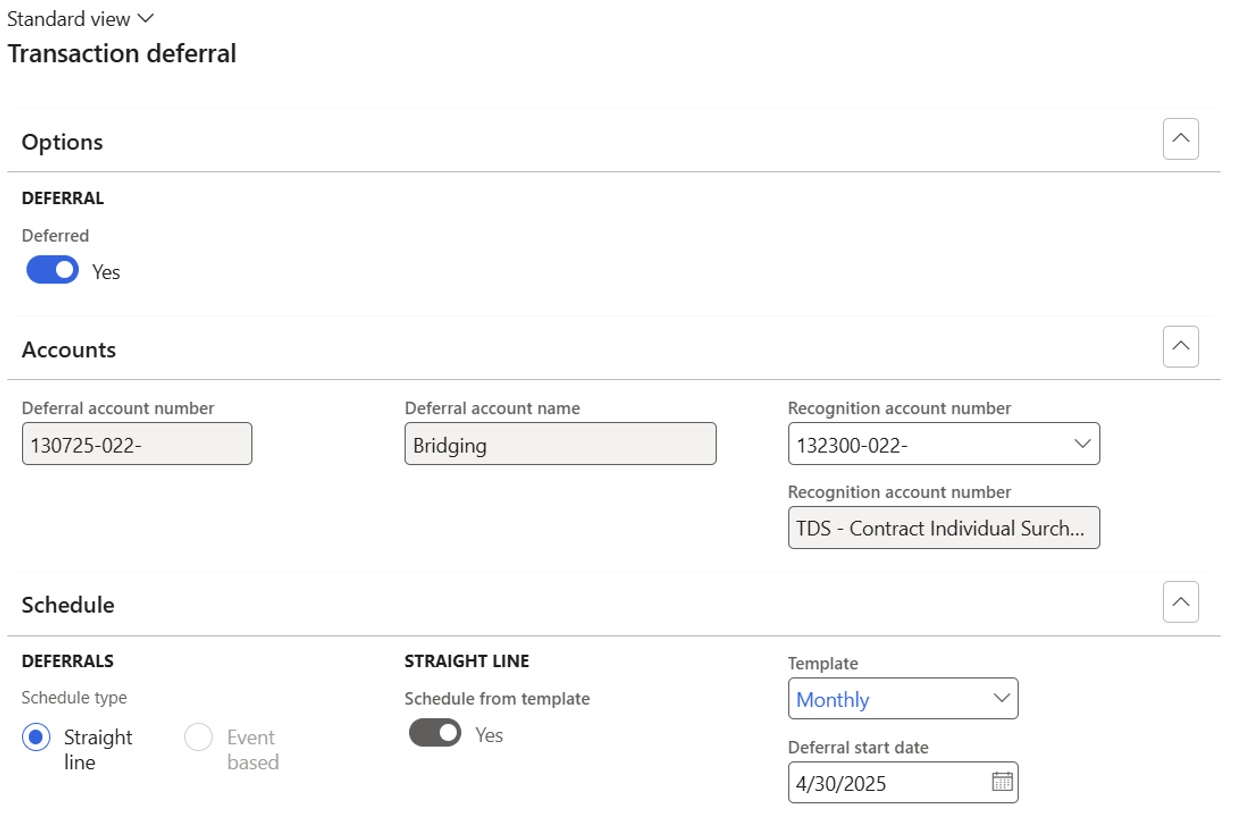
It’s possible to change deferrals by clicking button Deferrals, it will open form where deferral can be edited.
The Recognition account number can be changed, the Template can be changed, and Deferral start date can be changed.

Document form
Same function as in import form.
The values in document form can also be changed from the web, and changes will be made on invoice lines.
My vendor invoices
Same function as in import form.
The values in document form can also be changed from the web, and changes will be made on invoice lines.
ExFlow web
The fields and values are presented among all the other fields on the lines.
Values can be changed and the values will update the values in document form.

If Deferred is set from No to Yes, a search is done as in the forms, and the default values will be set if found, if no default is found, error text will appear.
If Main account is changed, a search is done as in the forms, and the default values will be set if found.
If no default is found, Deferred will be set to No.
Note: It is not possible to combine Accrual and Deferral, this will give error and must be handled.
Invoice Journal
The deferral values that was set during the approval process are set to the lines, then D365 standard that follows.
Workflow
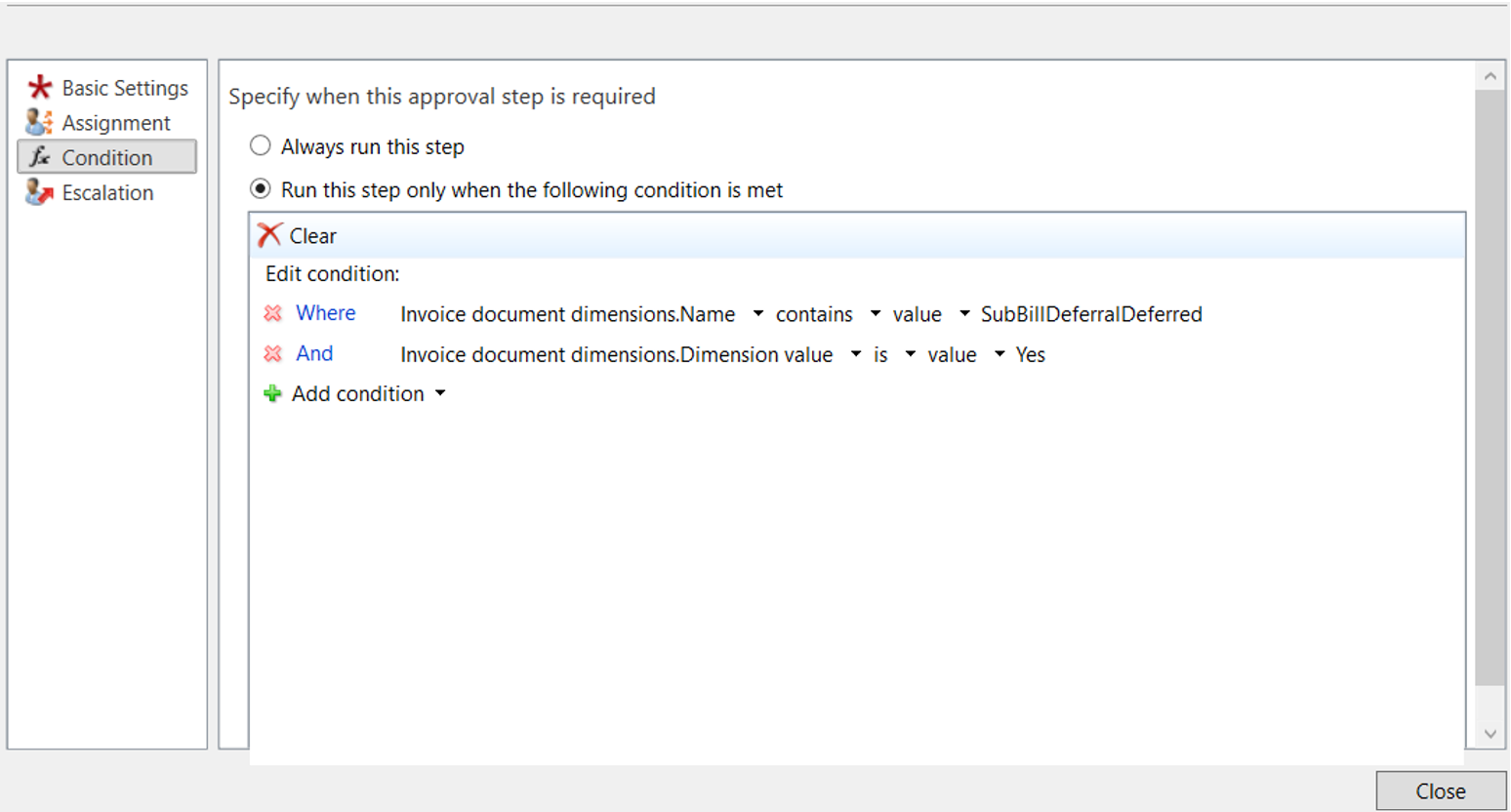
SubBillDeferralDeferred value in the workflow will check if invoice lines is deferred if Yes it will continue with the workflows next steps.