Introduction
Process mining in Power Automate is a tool that helps business understand their business processes, how they interact with each other, and identify opportunities for improvement, automation, and digitalization.
Standard templates exist to show finance and SCM processes and can be used directly from Dynamics 365 Finance and operations Apps, but it is not possible to create these processes for new solutions.
Process mining can use event logs from OData and use information to be shown in process mining maps.
ExFlow has already a built-in timeline log for documents.
This solution will be proof of concept on how Process mining can be used in ExFlow.
Dynamics 365 Finance and Operations apps
To use process mining, we first need to create a table with events that can be used in the process mining model. Each event should contain the following data:
-
Case ID
This should be an ID for the whole process. In ExFlow, the document ID is a unique identifier from the moment the document is imported until it is posted in the system. -
Activity
This is the event from the event log. For the process map to be clear and readable, activity names should be short and accurate. Example: "Status changed to Approved" instead of a generic description such as "Document status update". -
Event start
The start date and time for the event. -
Event end
The end date and time for the event.
Data
ExFlow already has a timeline for documents based on the ExFlow event log. This timeline is useful because it contains the history of events related to a document, such as import, approval, posting, and other status changes. This can be used as the foundation for process mining by extracting the relevant events and creating a process dataset.
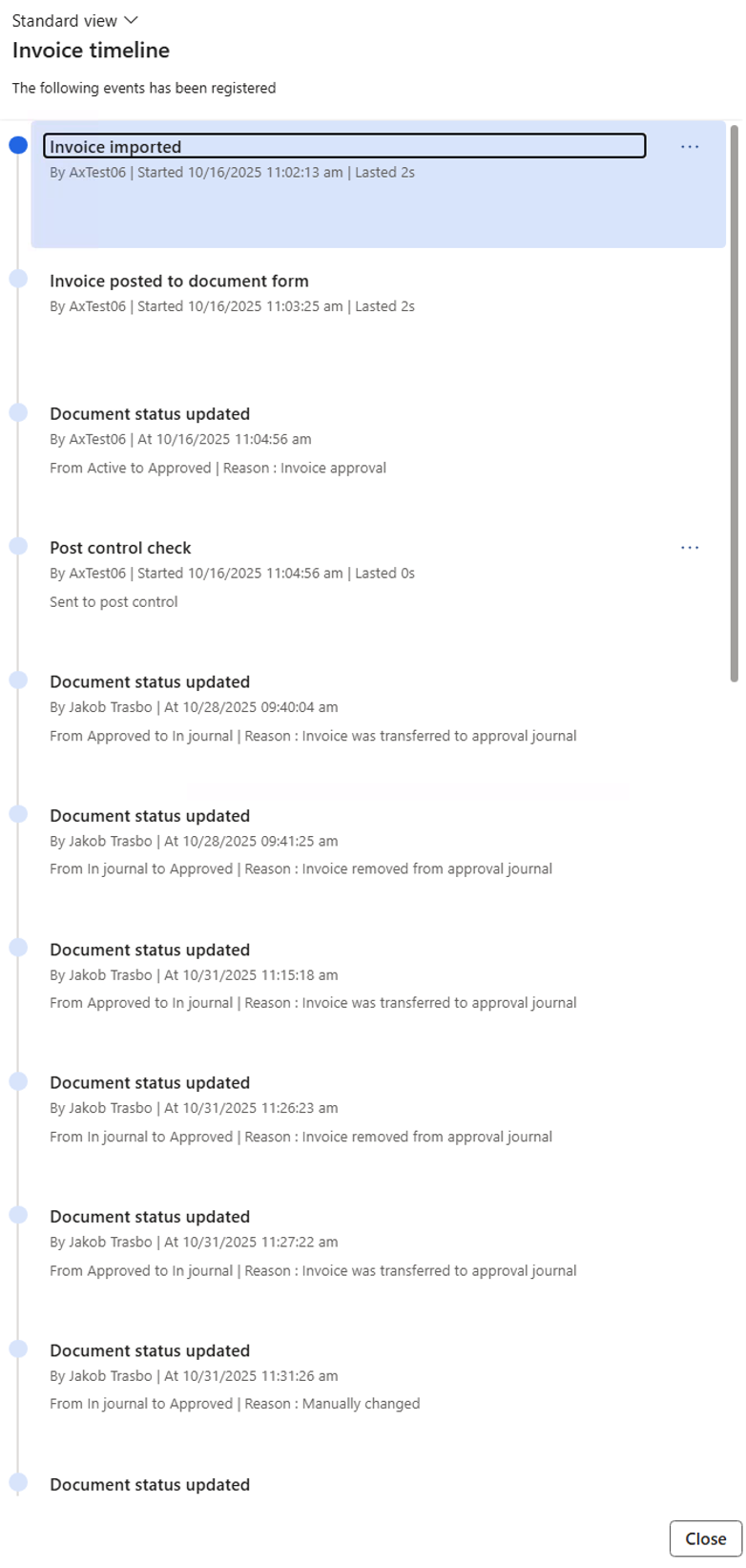
All entries in the event log are based on the table EXF_tLogInvoice and information is added to the timeline using the class EXF_cLogTimeLineDialogBuilderInvoice and stored in entry collection list.
For Process Mining we are using a selection of documents going back in time and also limited by number of documents. As per now it is limited to 24 months back in time sorted descending on create date and time and limited to 100 documents in total (per update of the staging table).
The proof of concept for ExFlow Process Mining is built in the same way as Warehouse material movement process.
A new table for data with the information for Process mining needs to be created. Processes are created and can be set up to update staging table in a batch job depending on month and number of documents. Each process does always belong to one legal entity, and will only create data for this:
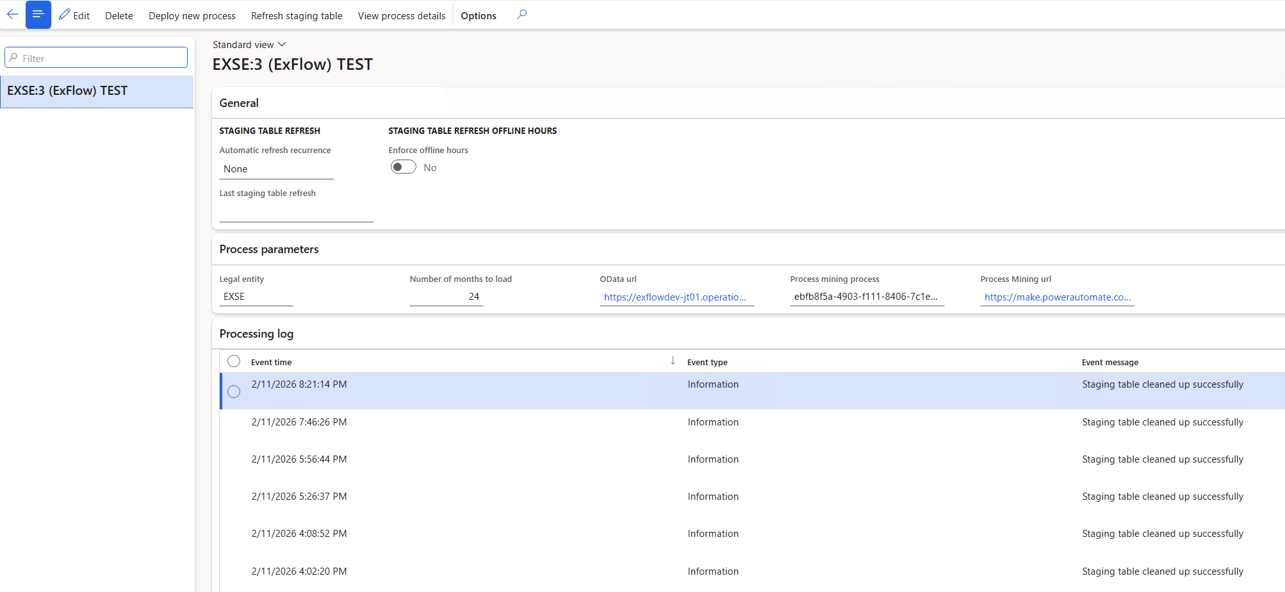
- Processing log shows the initial data update and the staging table cleanup and processing.
- Deploying new process starts a wizard for deployment.
- Deploying Power Automate directly from ExFlow in Dynamics 365 is a manual step, and does not automatically deploy Process Mining.
- Material movement D365 SCM is a prebuilt template in Power Automate Process Mining, but at this point templates cannot be created as a solution.
Instead, the Deploy in Power Automate will open up Power Automate in the right tenant. The tenant used is the same as D365 is running under in PPAC. If you use another tenant in D365 please add this user to D365:

Deploy new process
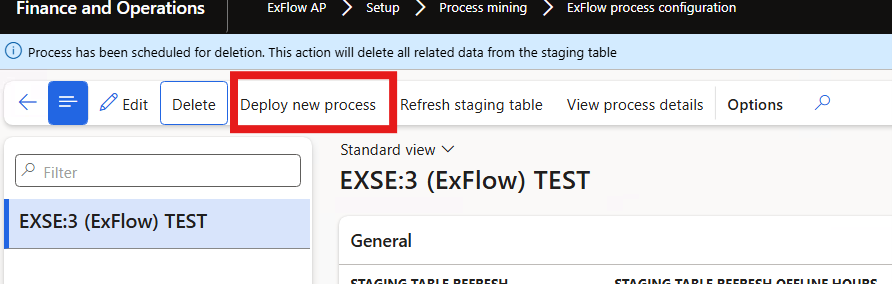
New Process Mining processes can be deployed from the ExFlow process configuration by choosing Deploy new process:
A wizard is started with some explanation and configuration:
- Process names need to be a unique process name.
- Company is the legal entity for the process. A process is only running for one legal entity.
- Number of months to load is a limitation, but it will go back from today’s date and only load the maximum number of documents and only the months specified back.
- Process mining process is the GUID from an already created process in Power Automate Process mining. This can be specified in the wizard or setup later.
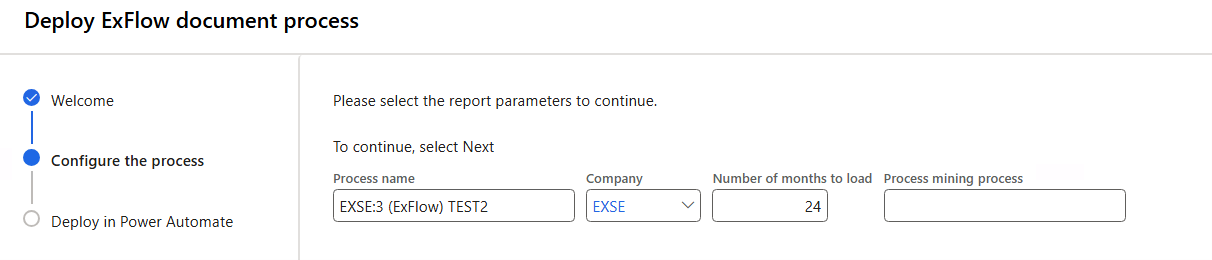
- By clicking Next and Finished in the wizard it will open up Power Automate for the tenant you are working in (maybe popup windows are blocked):
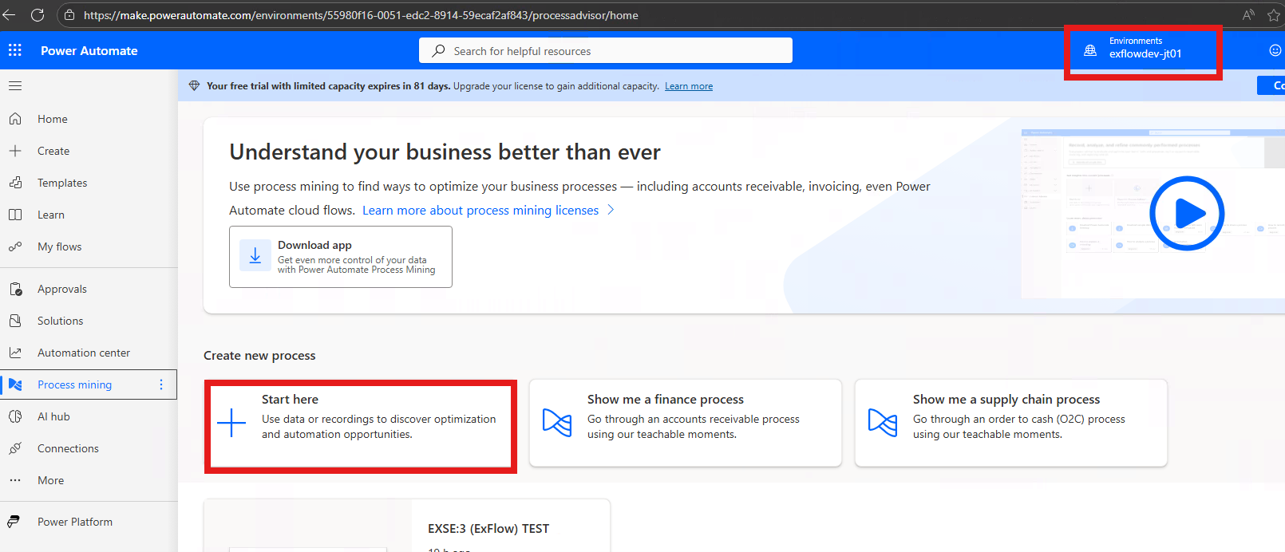
- In Power Automate Process mining under Create new Process select Start here for a new process.
For Process Type select Case ID process mining, data source as Dataflow and use the same name in Process name as called in D365.
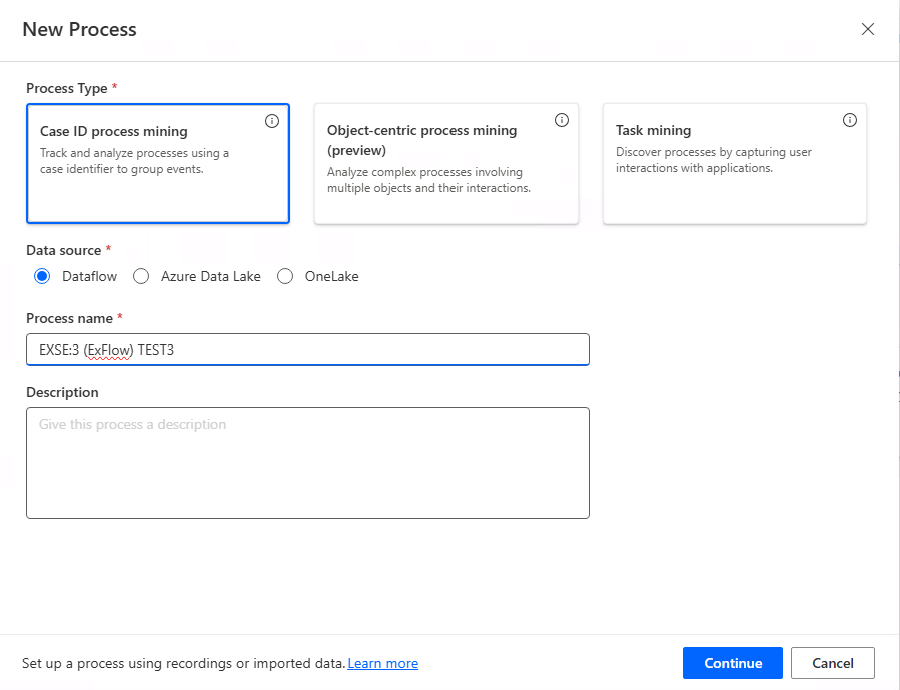
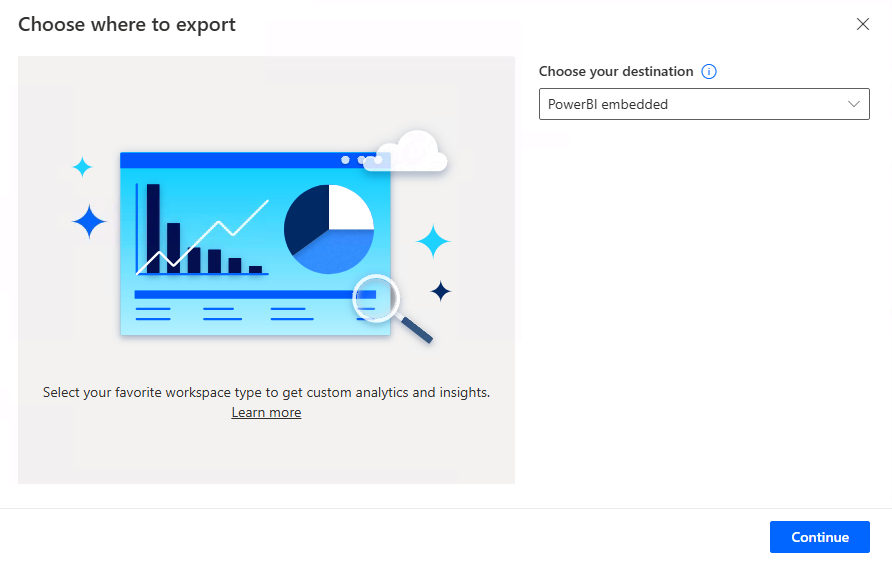
- Click Continue. Next pop up is to choose where to export, and keep default PowerBI embedded, and Click Continue.
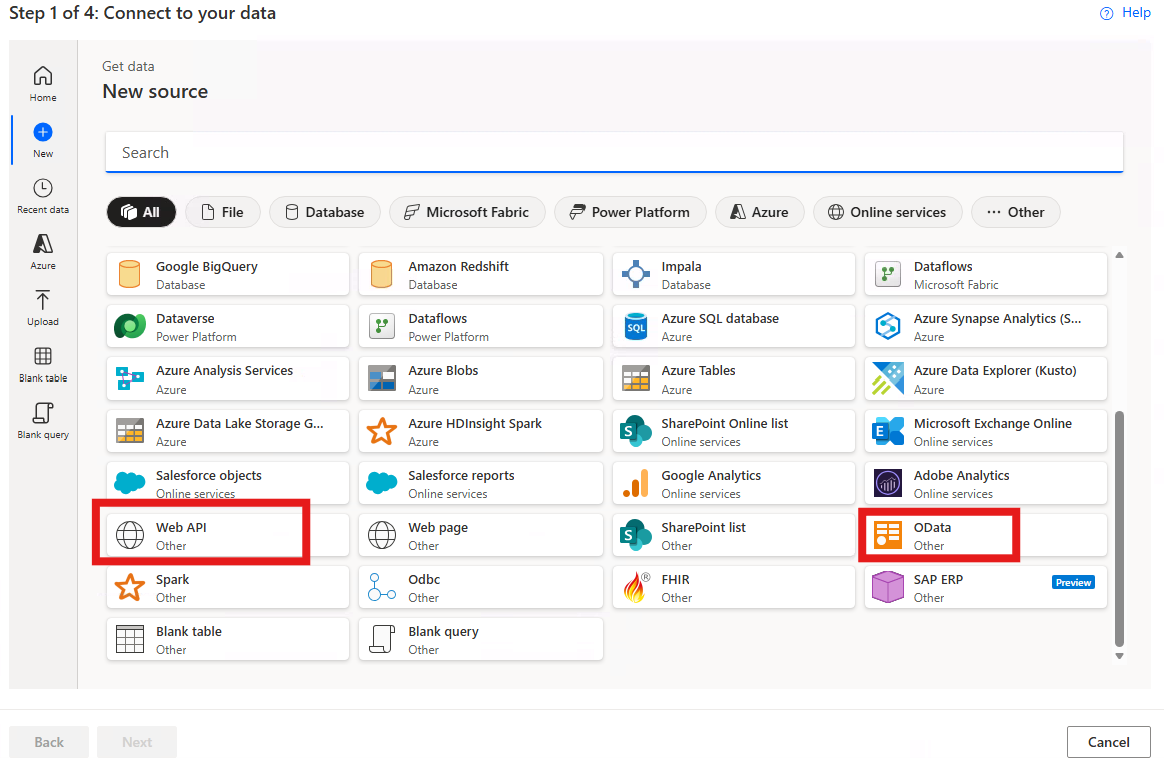
- Now it is time to choose data source. We can both use Web API and OData (you might need to select view more) for D365.
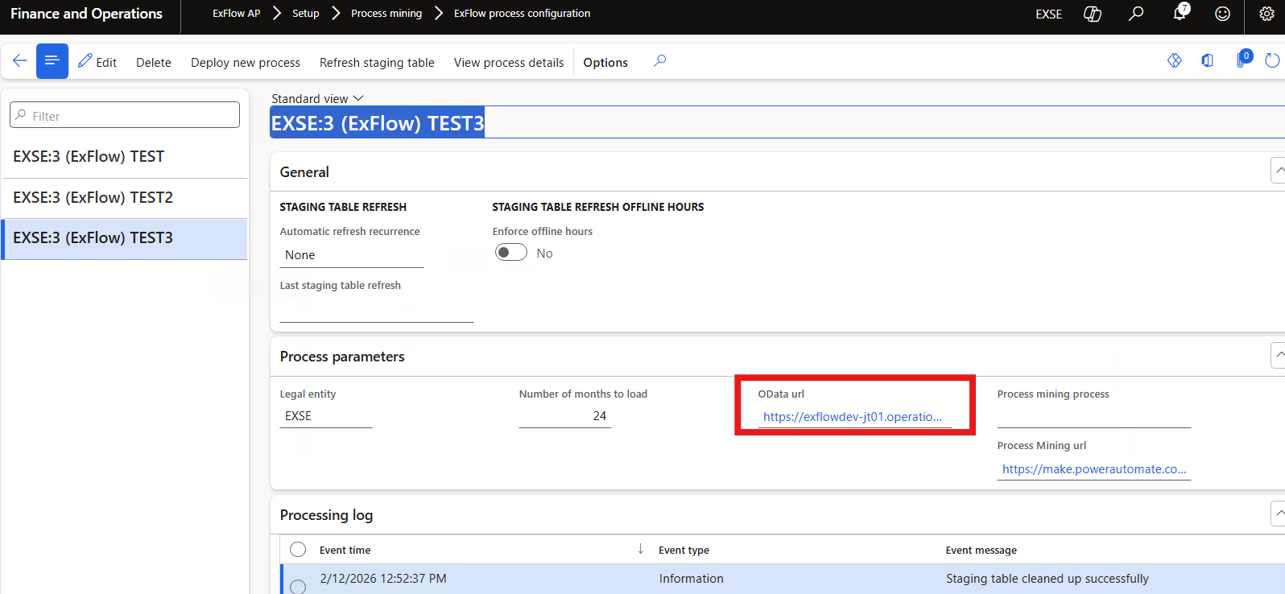
- Navigate go to ExFlow process configuration in D365 and find your process. Find the value in field OData url and copy it.
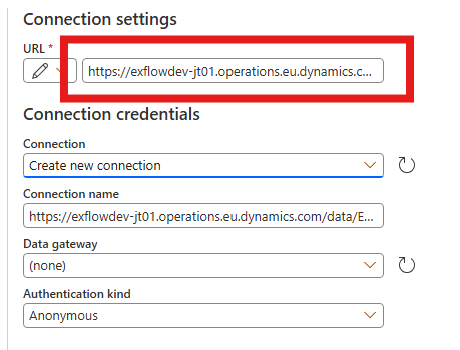
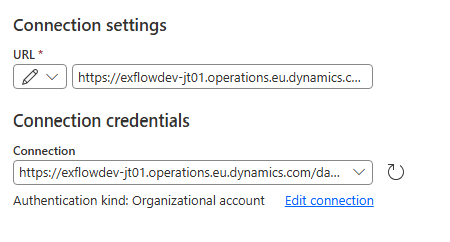
- Copy the value and paste it into the URL for Connection settings in Power Automate Process mining.
- In field Connection select Create new connection, and in Authentication kind select Organizational account (for using the user created in D365) and select Sign in.
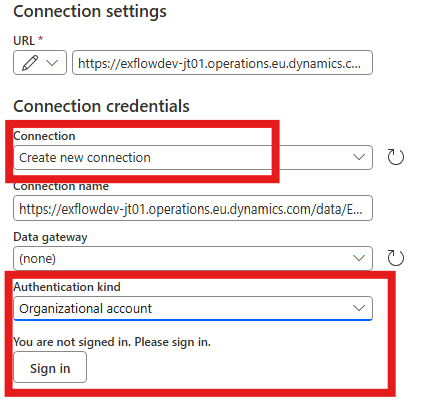
- A Pop-up window with Pick an account comes up and select the associated account. If it connects it would look like below.
- Select Next to transform your data.
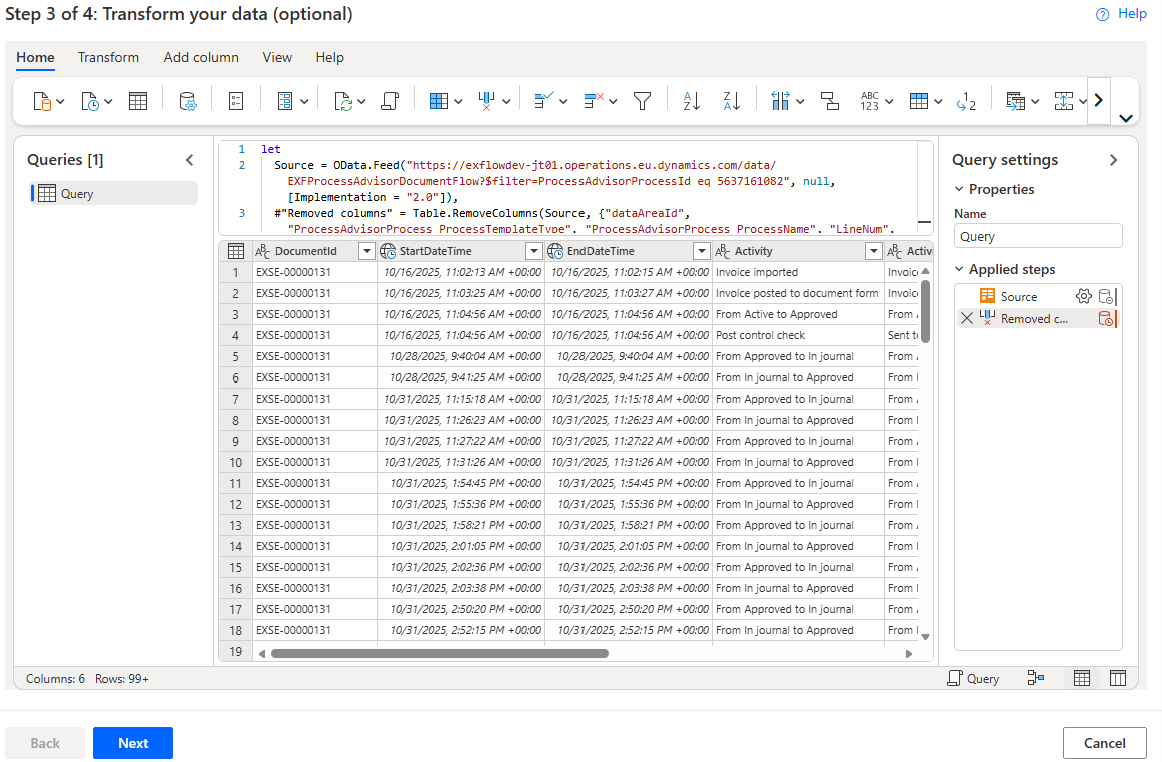
Now we can build the data and remove unused columns.
Remove the following columns:
- dataAreaId
- ProcessAdvisorProcess_ProcessTemplateType
- ProcessAdvisorProcess_ProcessName
- LineNum
- ProcessAdvisorProcessId
- TimelineEntyId
- ProcessAdvisorProcess_ProcessIntegrationId
Keep the following fields:
- DocumentId
- StartDateTime
- EndDateTime
- Activity
- ActivityBody
- DocumentCreateDateTime
- Click next to map fields.
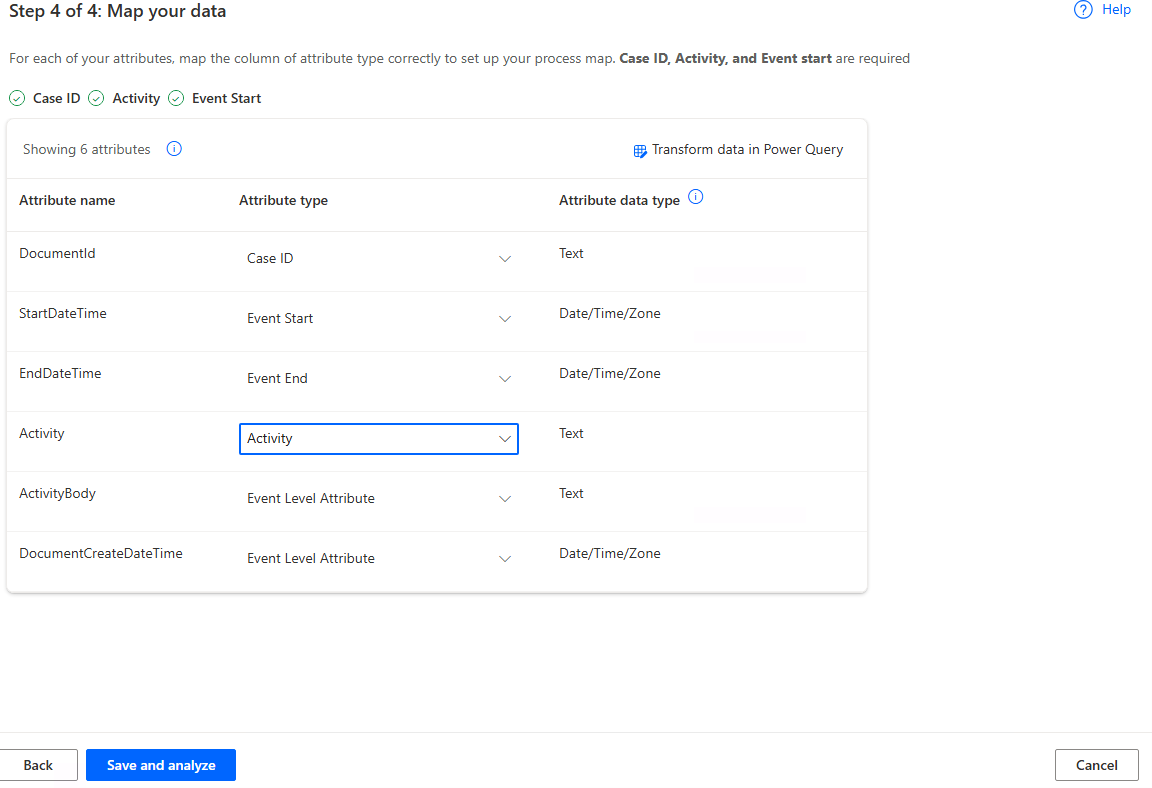
In mapping select the following:
- DocumentId = Case Id
- StartDateTime = Event Start
- EndDateTime = Event End
- Activity = Activity
- ActivityBody = Event Level Attribute
- DocumentCreateDateTime = Event Level Attribute
- Select Save and analyze (it can take a while).
Now the Process Mining report is available.
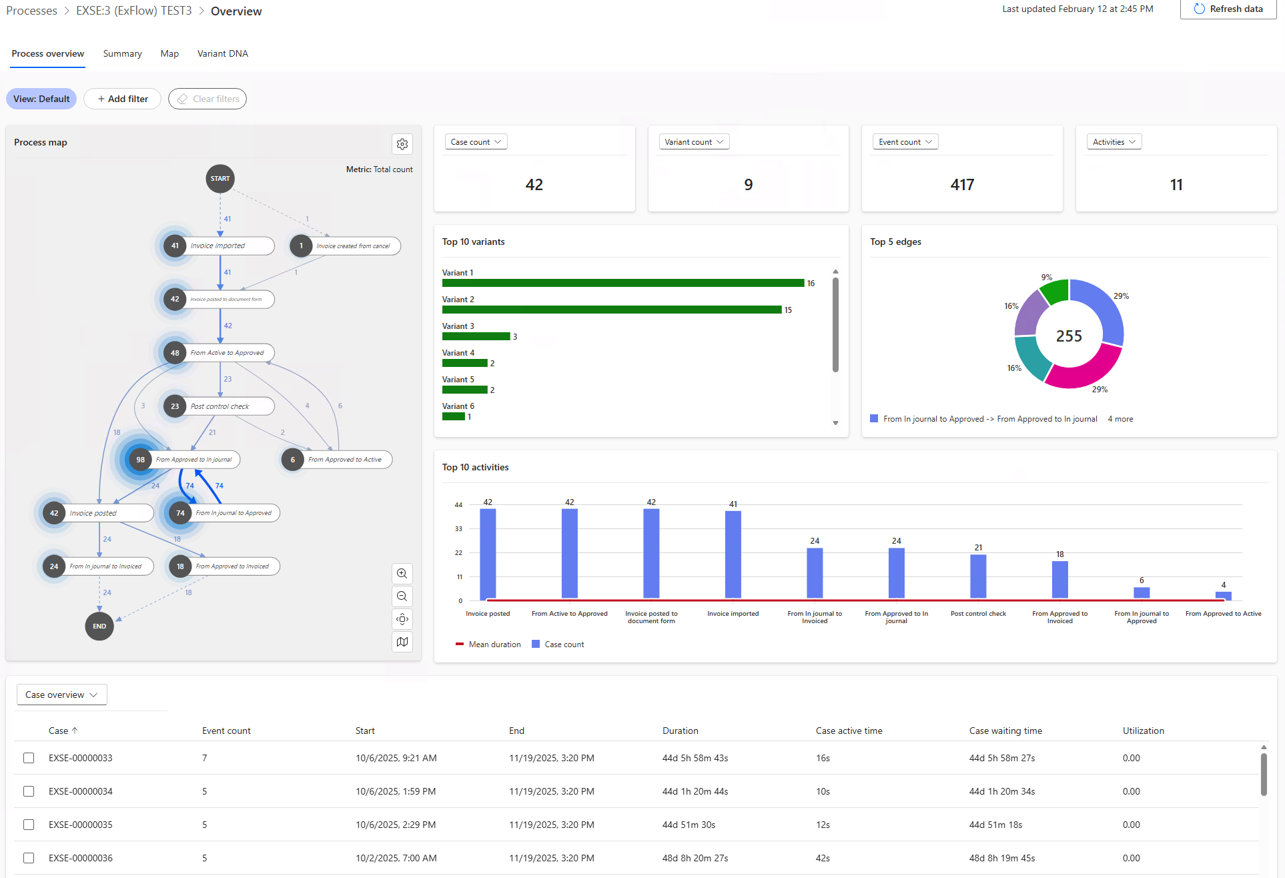
At the url you have a process guid, and we should map that to our process in D365 by copying it.

Paste it into the Process mining Process field.
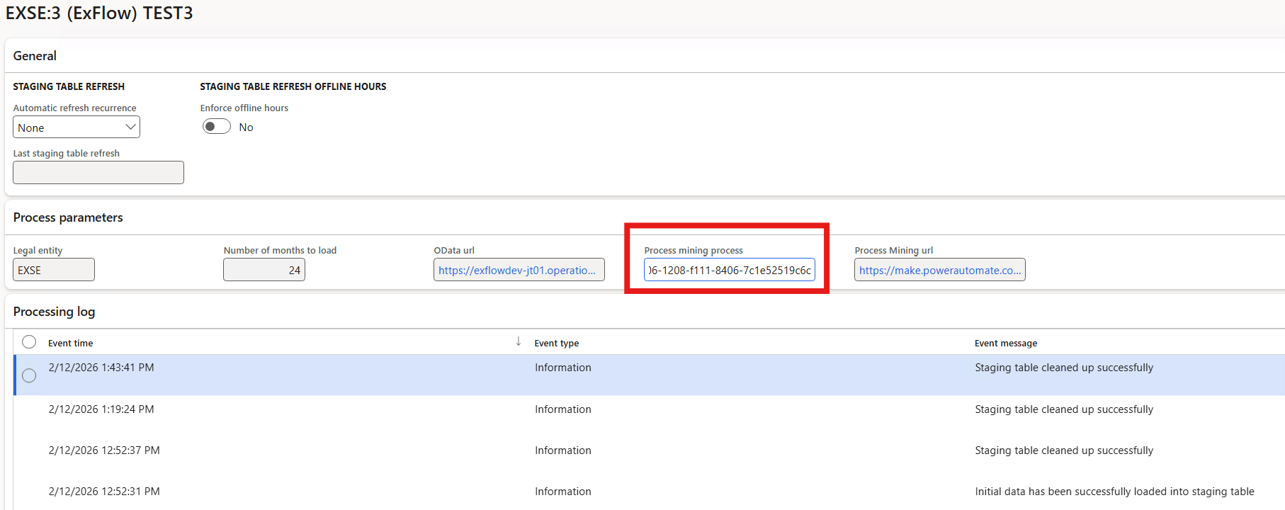
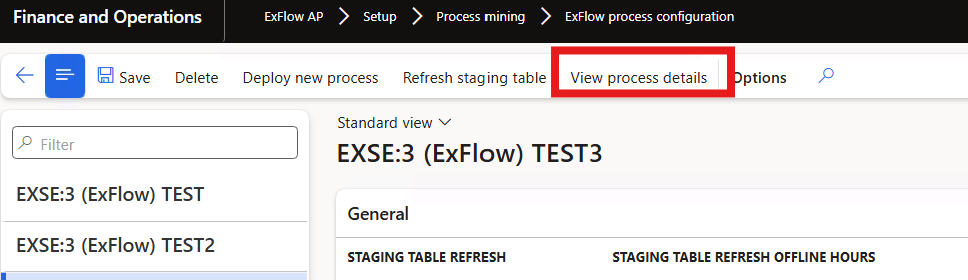
This make it possible to open up the report in Power Automate from the bottom View process details.
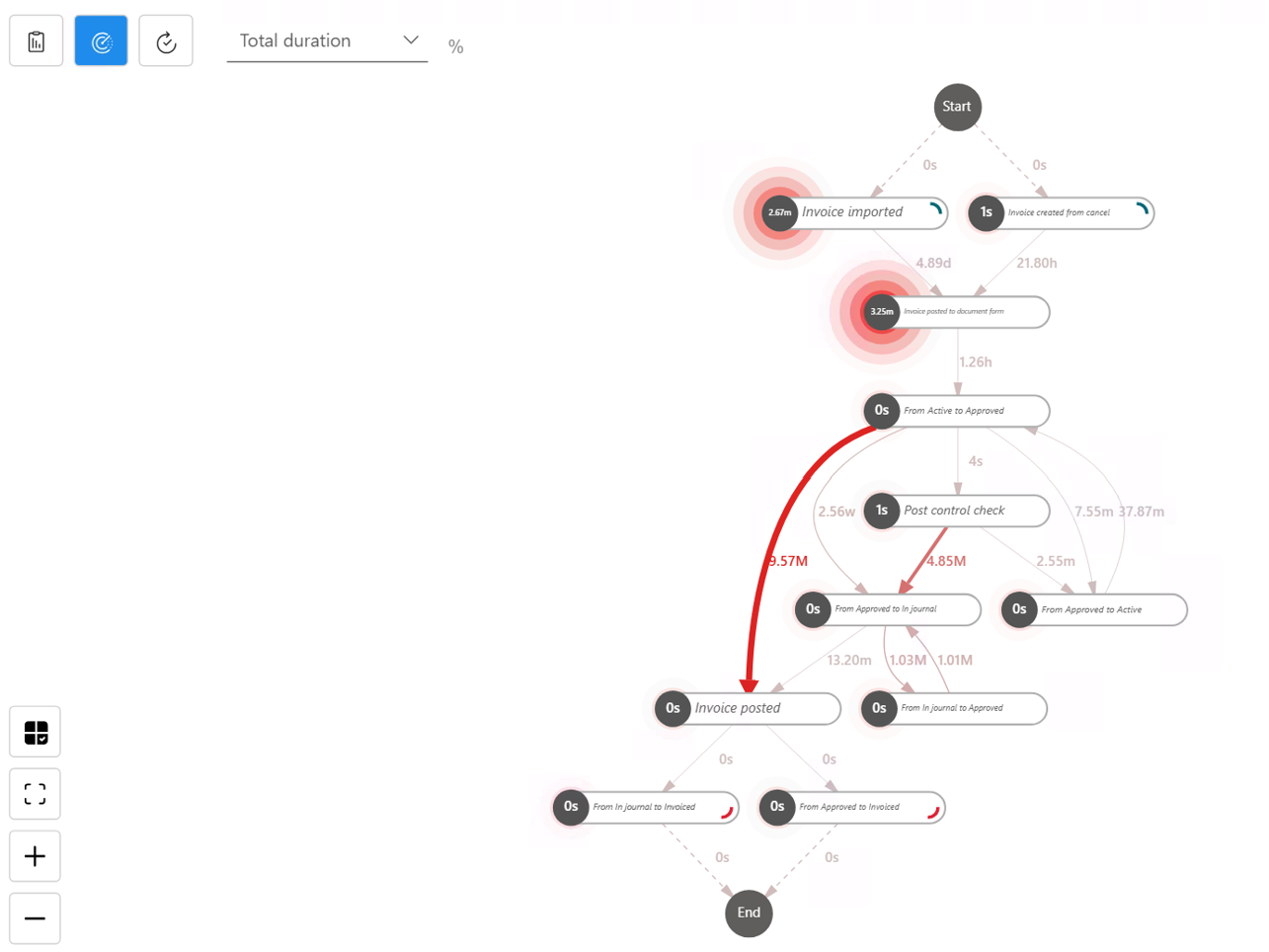
The map in Process mining will show the Time line for documents and the processes can be analyzed by looking at the map.
You can both see the number of how often each process is called, the performance and Rework.