Exploring Features
This section provides a detailed walkthrough of the application's features, demonstrated with concise video clips.
General
Customize Layout
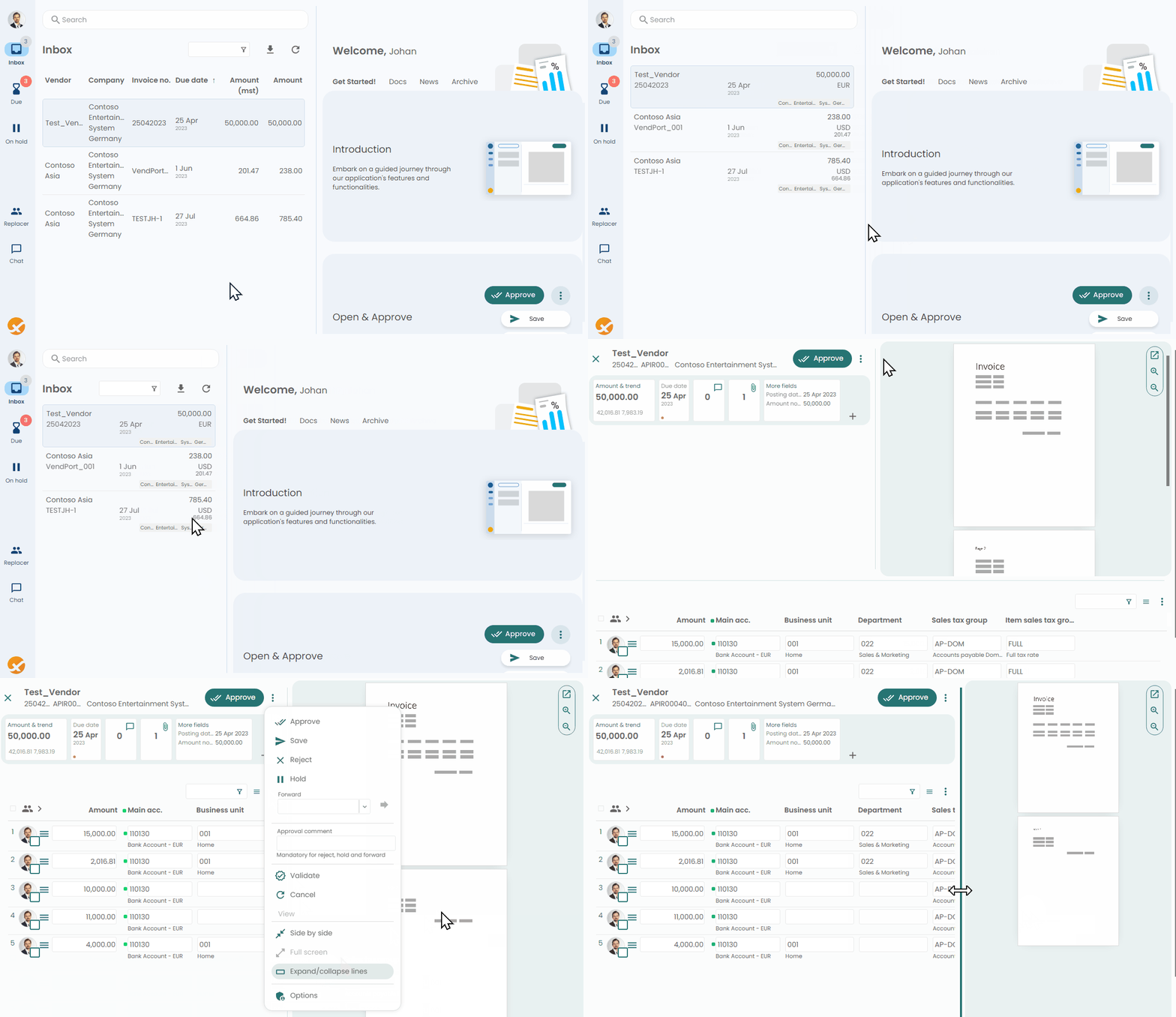
Customize the layout by adjusting the size using the splitter and options. Choose your preferred view.
Dark Mode
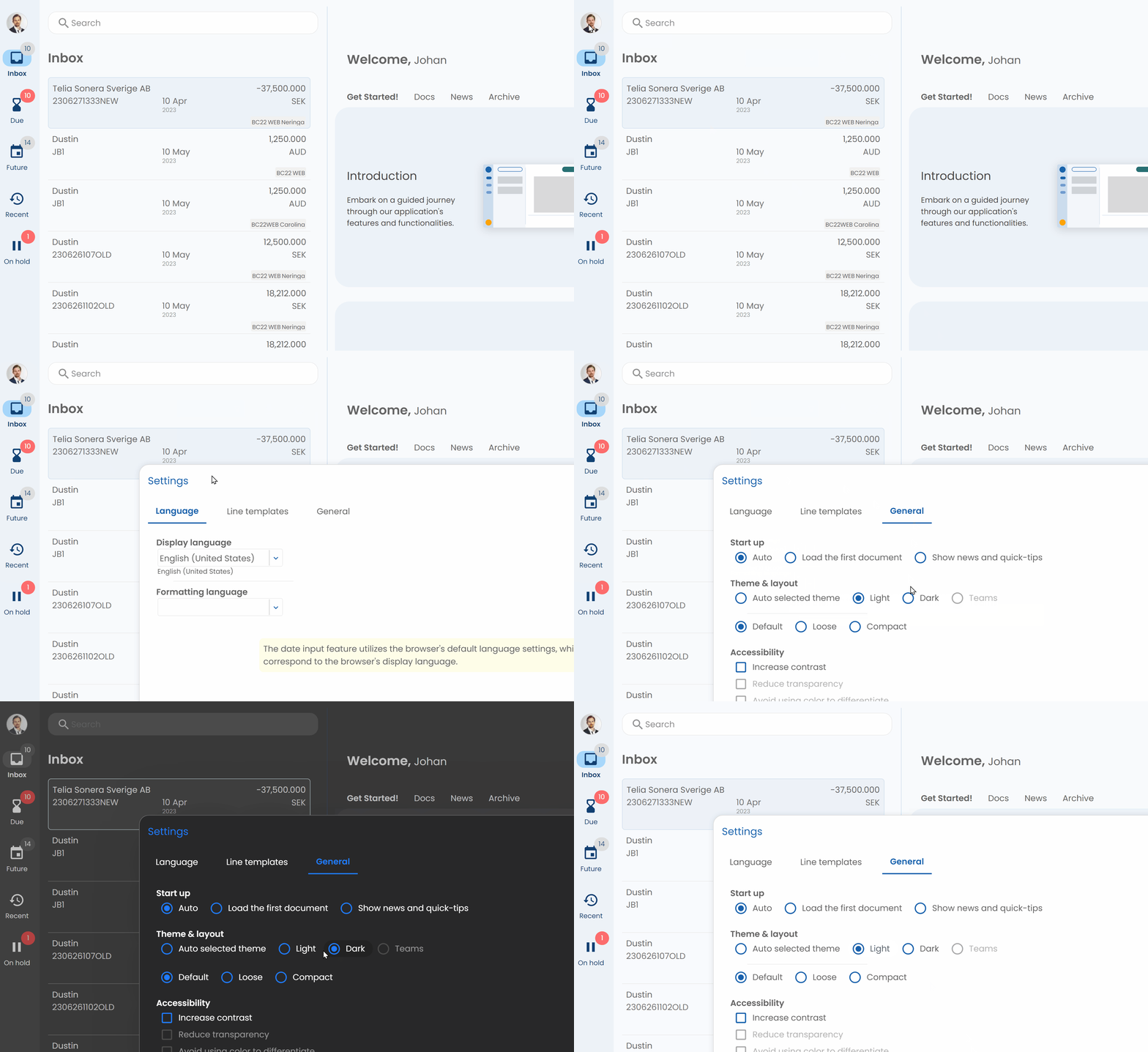
Choose between dark or light mode according to your preference.
Inbox
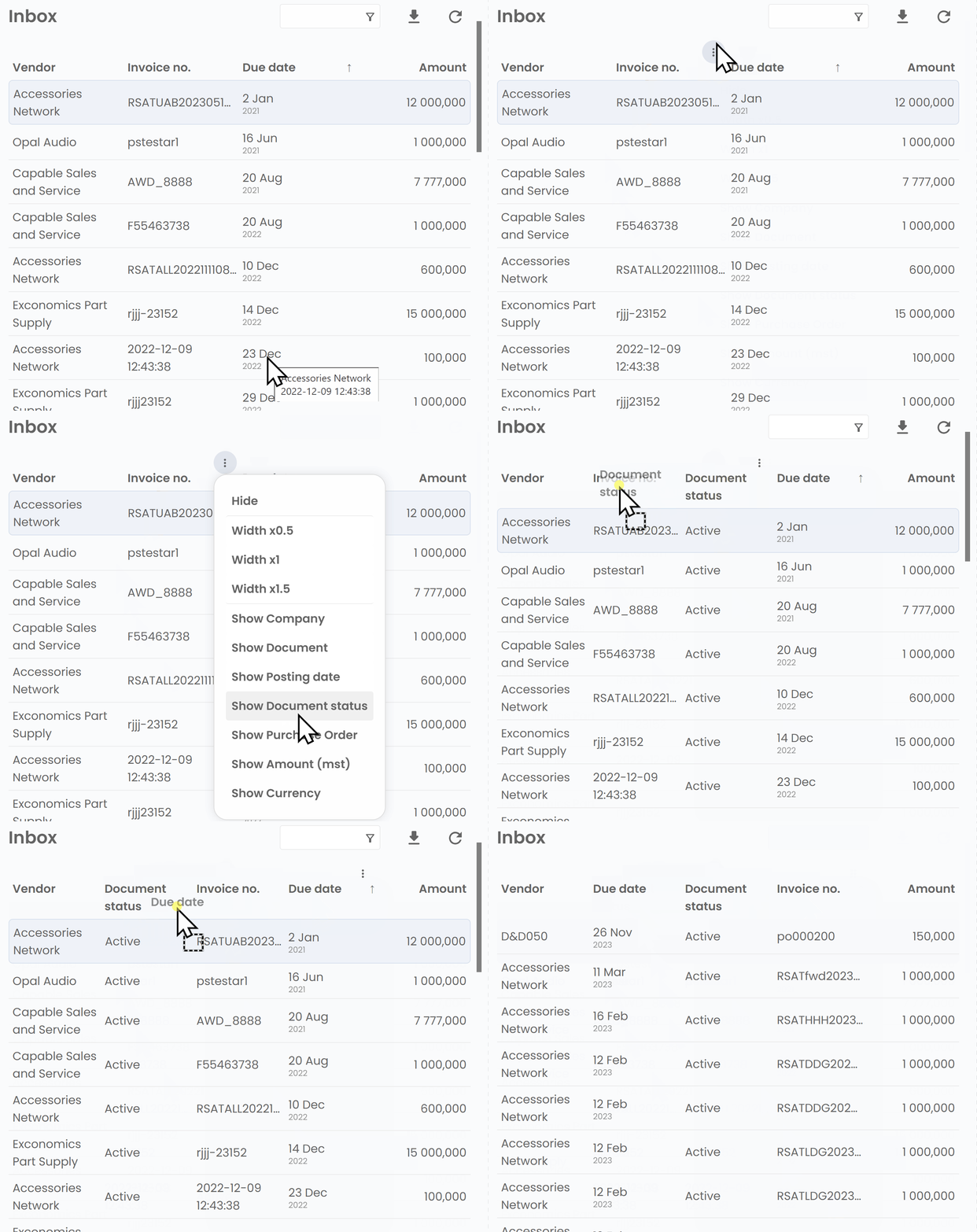
The grid now supports column reordering. This feature allows you to rearrange the columns in the grid according to your preference. The custom order you set is saved and will persist across sessions, providing a more personalized and efficient user experience.
Search
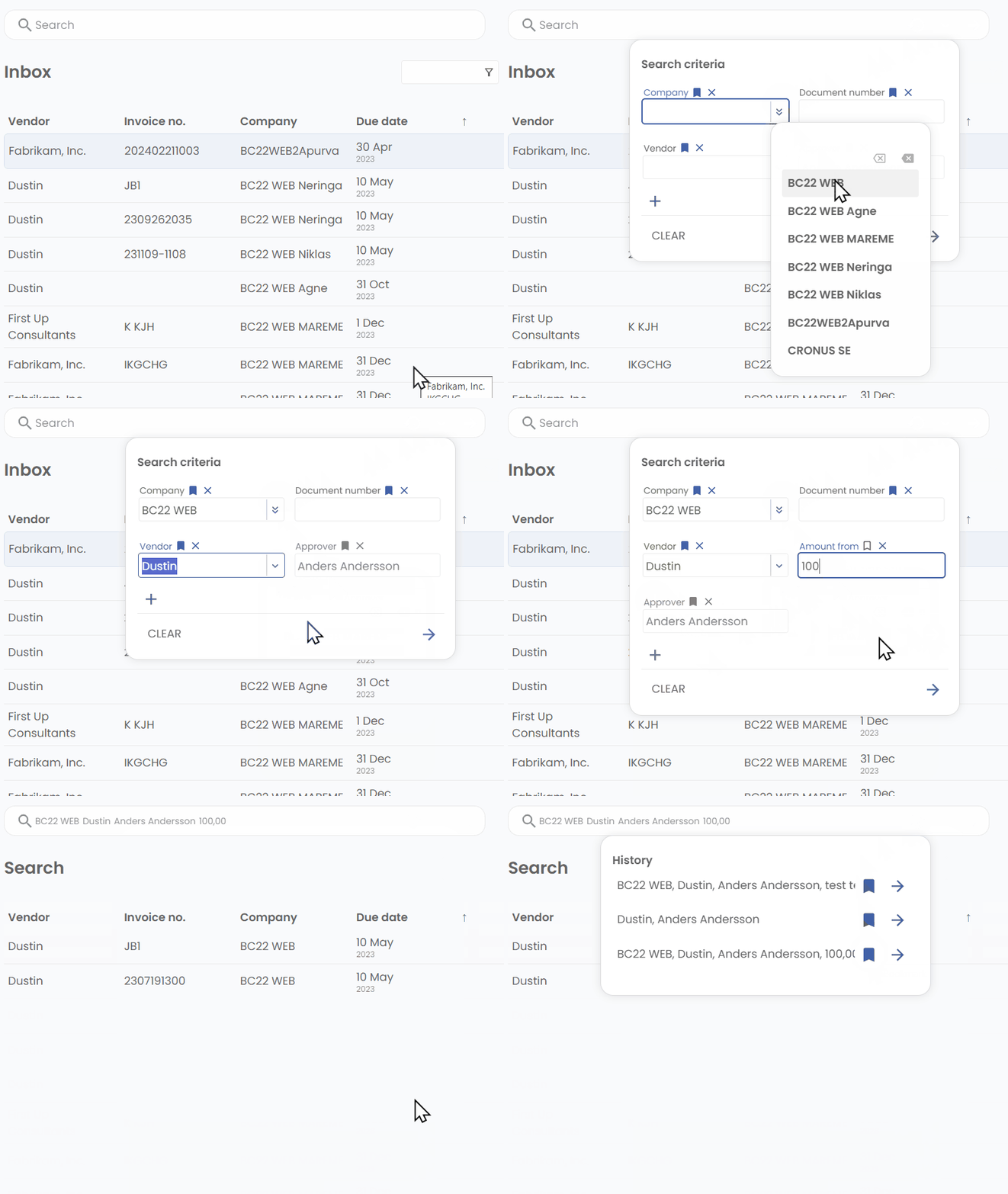
Discover how to effectively utilize the search feature and save your searches for future reference.
Add Replacer
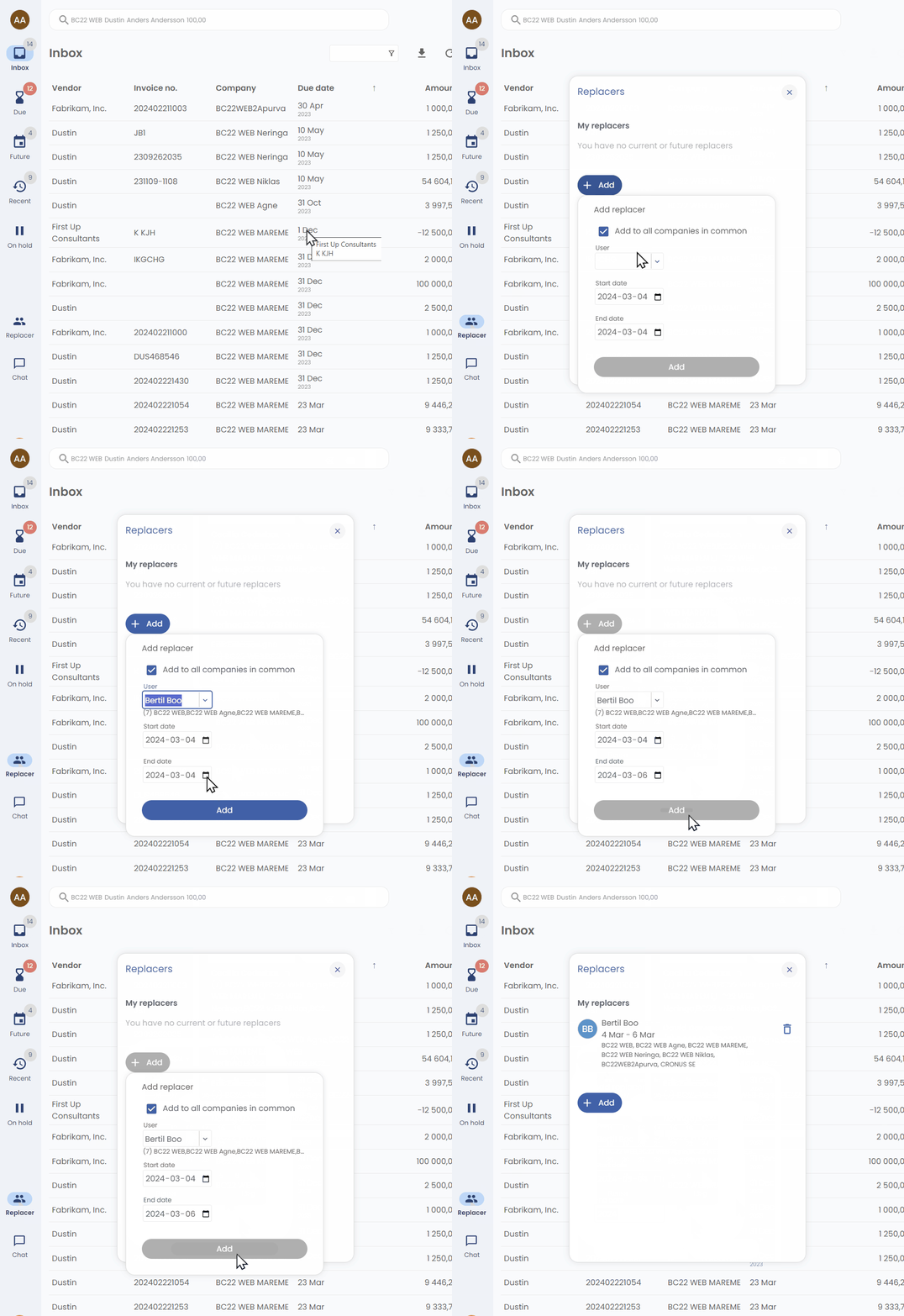
Utilize the "Replacer" feature to delegate invoice approval when you are out-of-office.
Approval
Approve & Continue
Approve & Continue
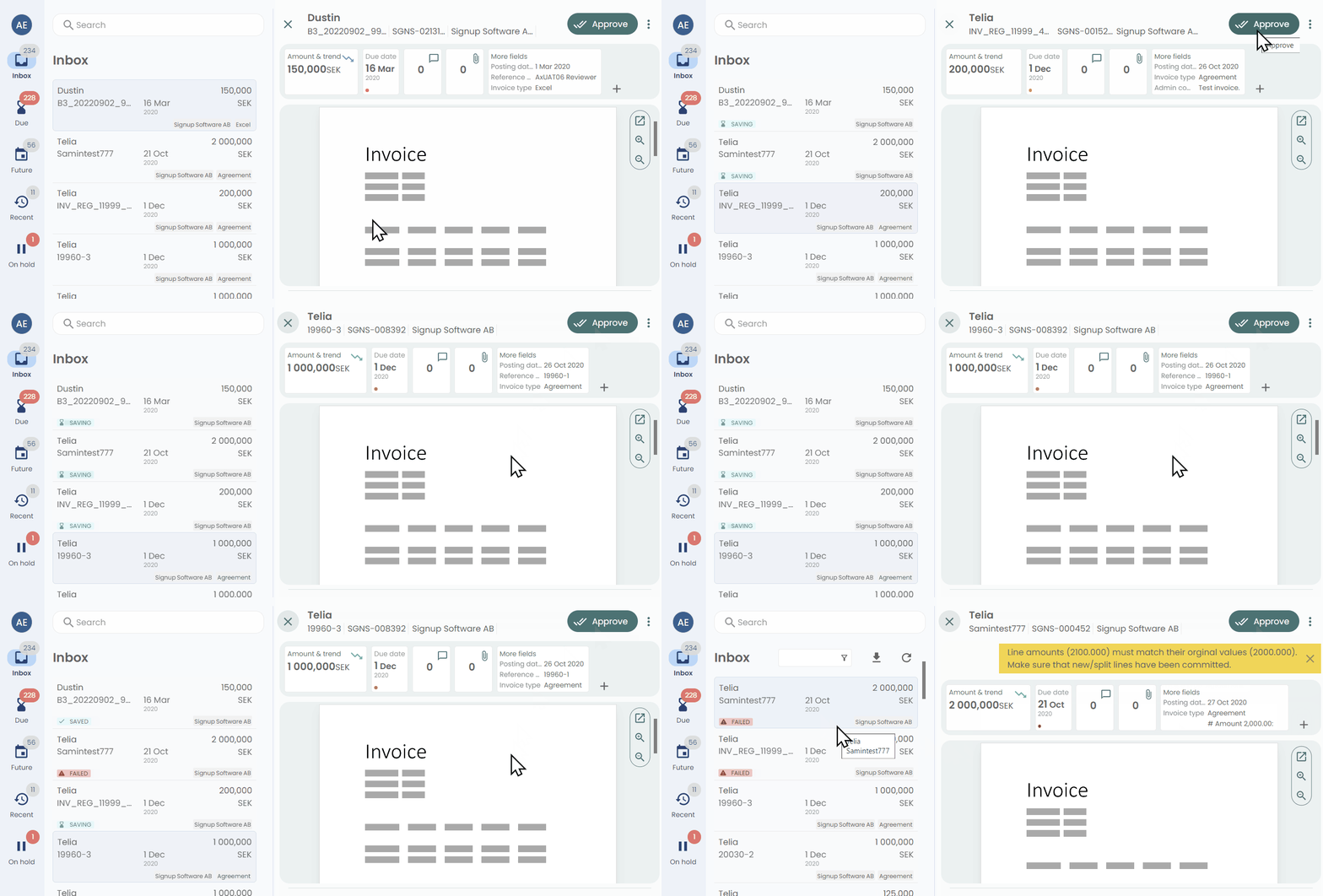
This feature enables users to maintain productivity even if validation and approval processes are slow within the ERP system. Once a document is approved, users can immediately proceed to the next document without waiting for the previous process to complete.
Peek Inbox
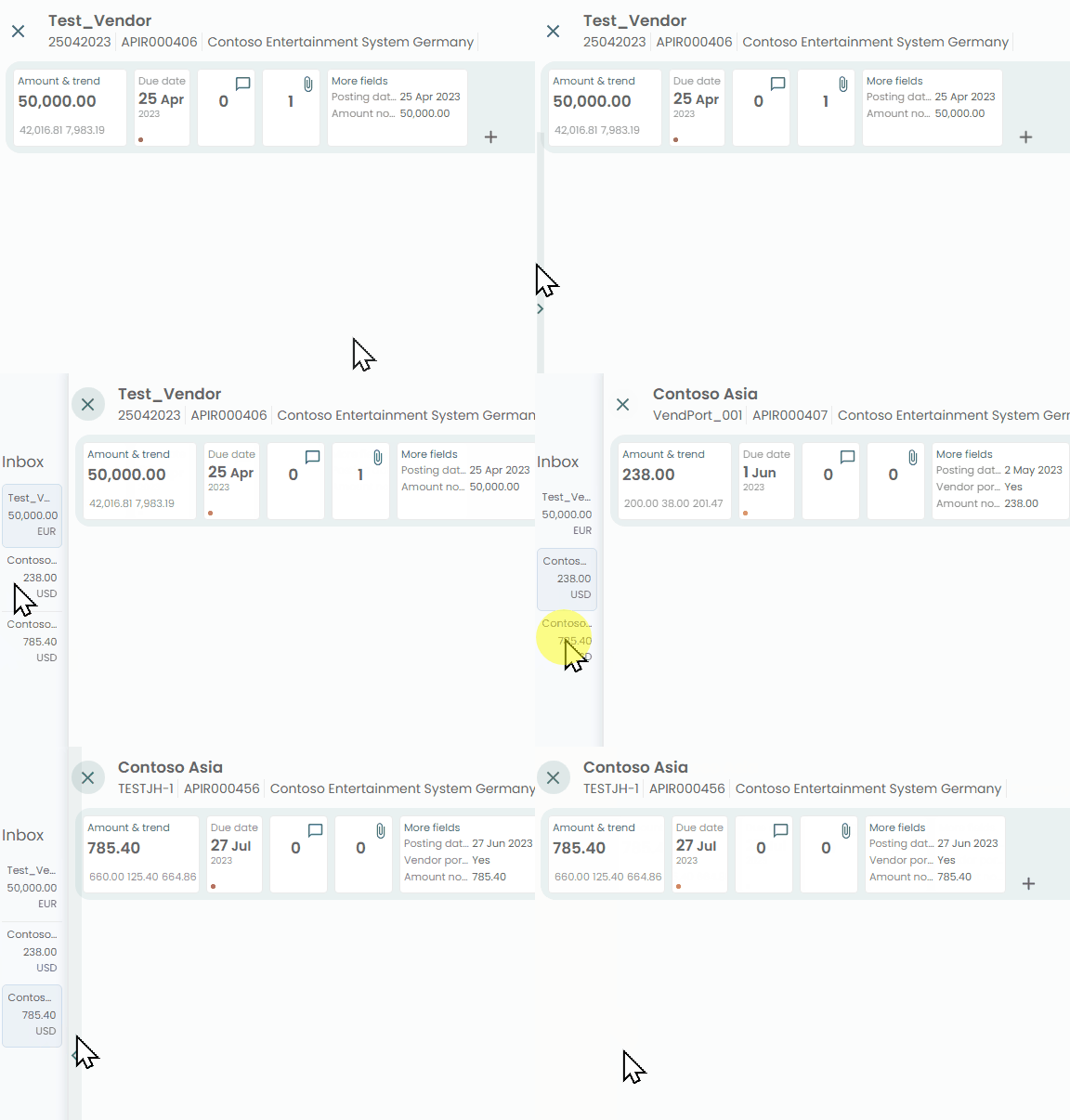
This feature enhances your workflow by allowing you to peek into your inbox without leaving the full screen mode of a document.
Previously, to check your inbox, you had to exit the full screen mode of the document you were working on. With the new Peek Inbox feature, you can now quickly glance at your inbox while staying in the full screen mode. This allows for a smoother, more efficient workflow, as you can manage your inbox and documents simultaneously without the need to switch back and forth.
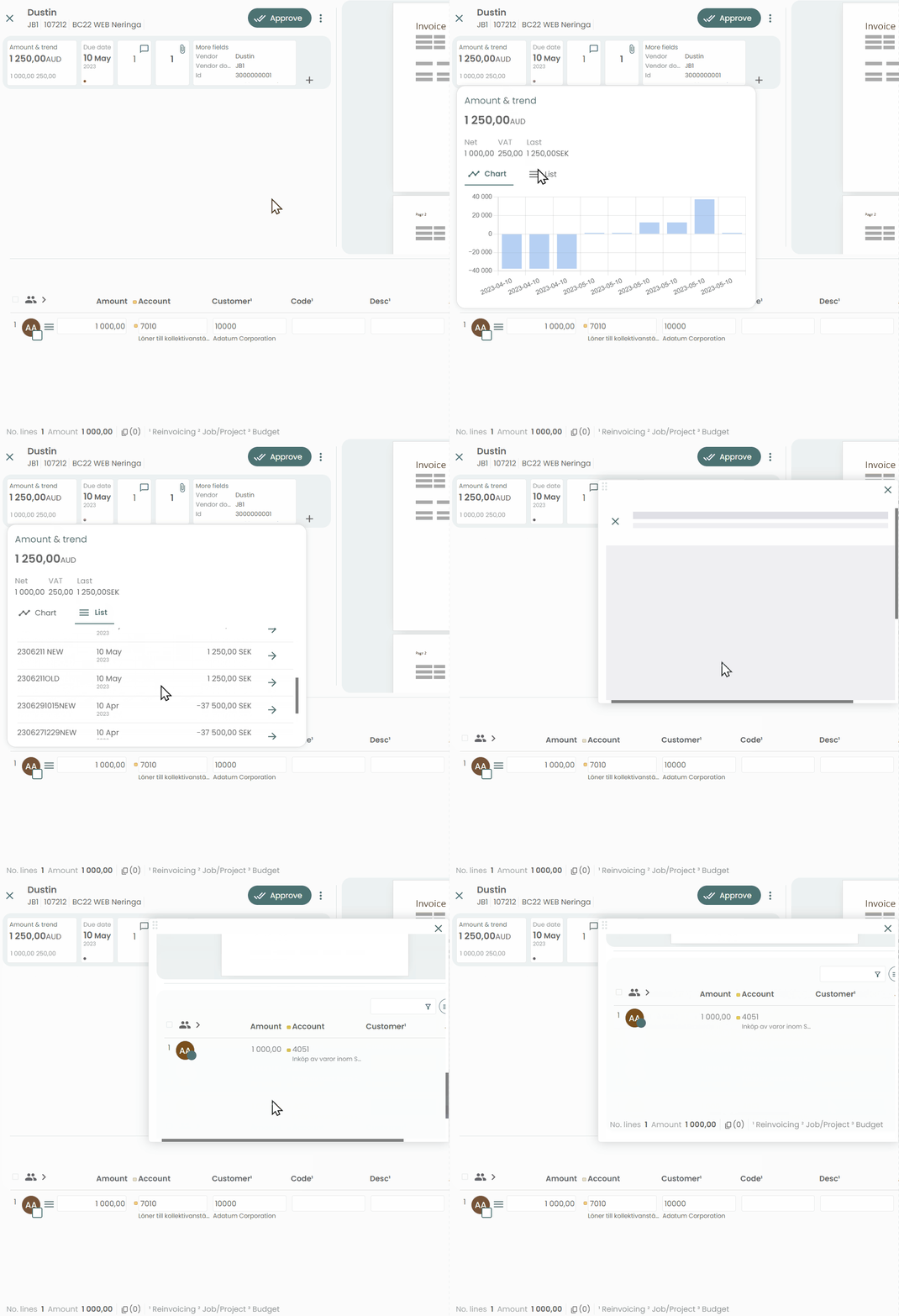
Amount & Trend
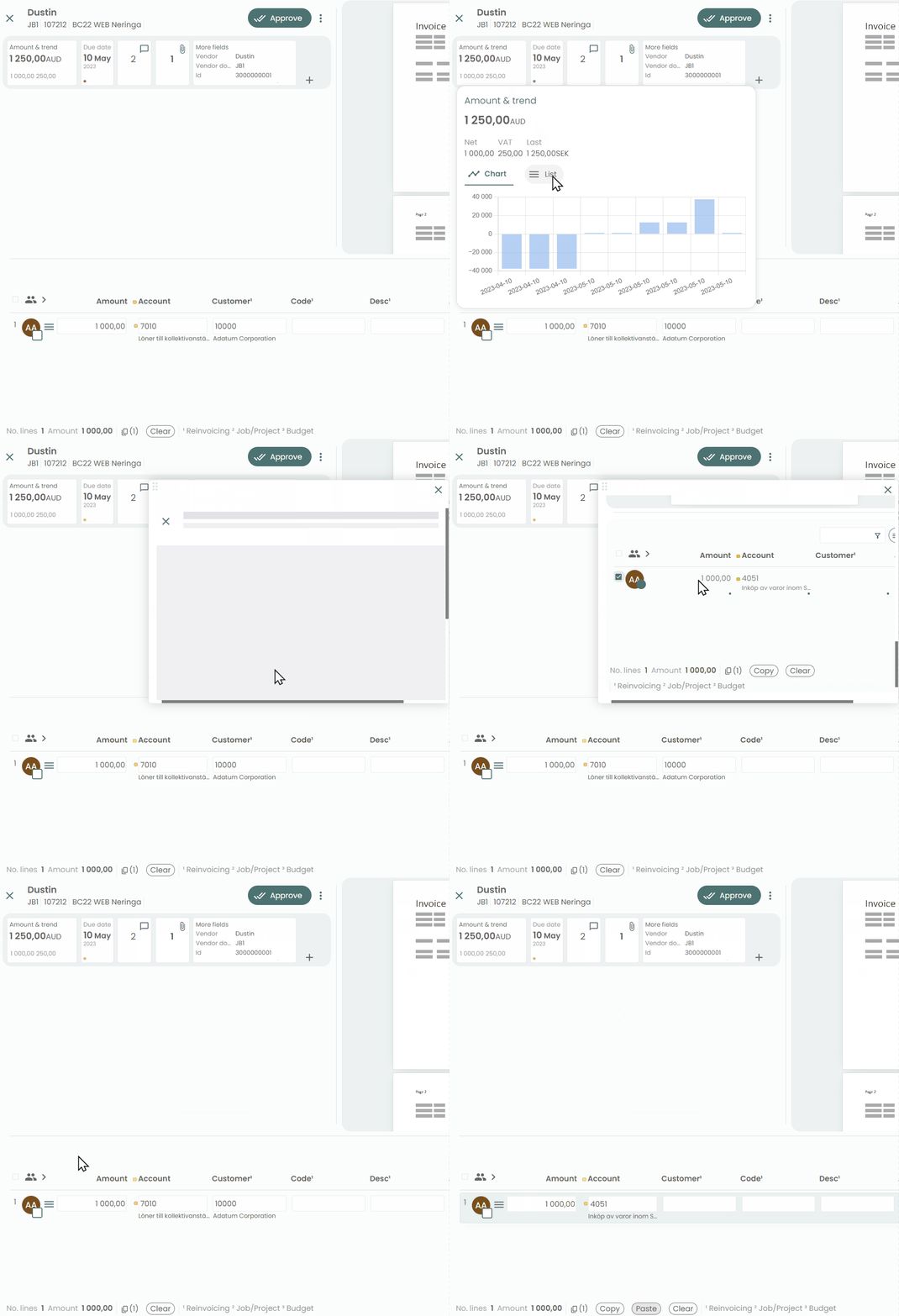
View and open past invoices and compare trends. Reuse lines & coding using the copy feature.
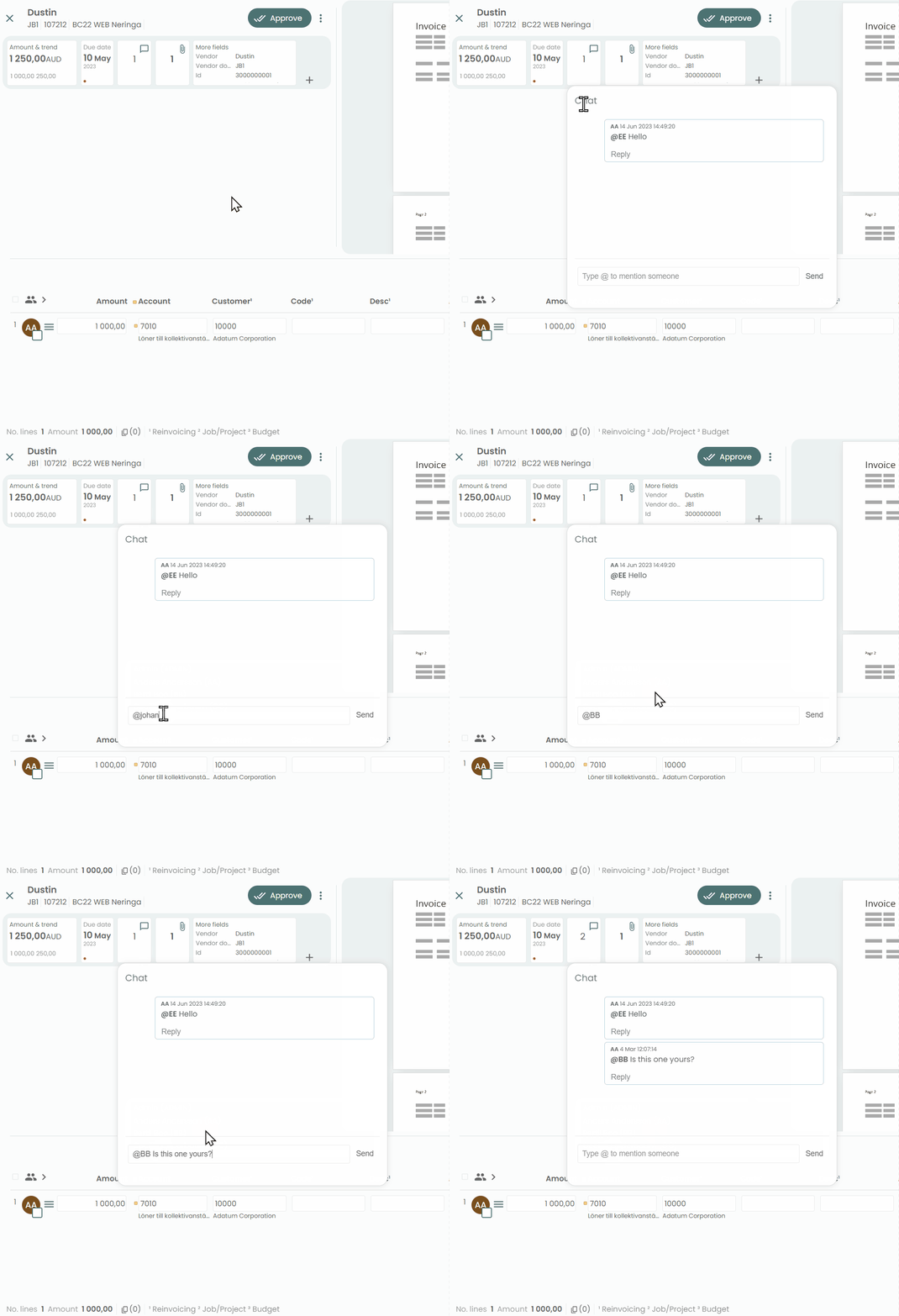
Chat & Collaborate
Ask your colleuges using the chat feature.
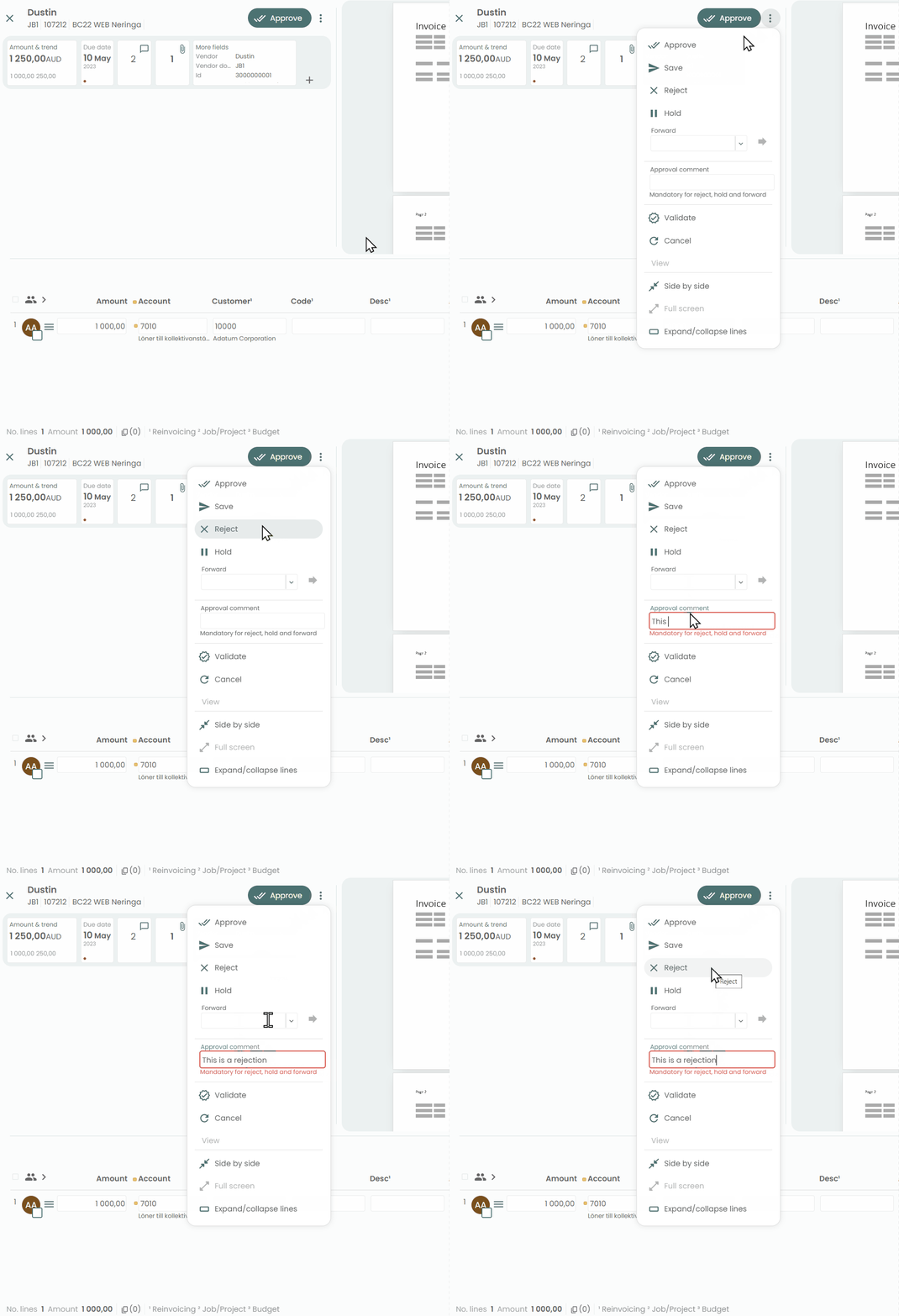
Save, Reject or Forward
Learn how to save, reject, or forward documents. Use the 3-dots menu next to the Approve button to execute additional approval actions. Please note that for hold, forward, and reject actions, the system requires an approval comment.
Multi-edit
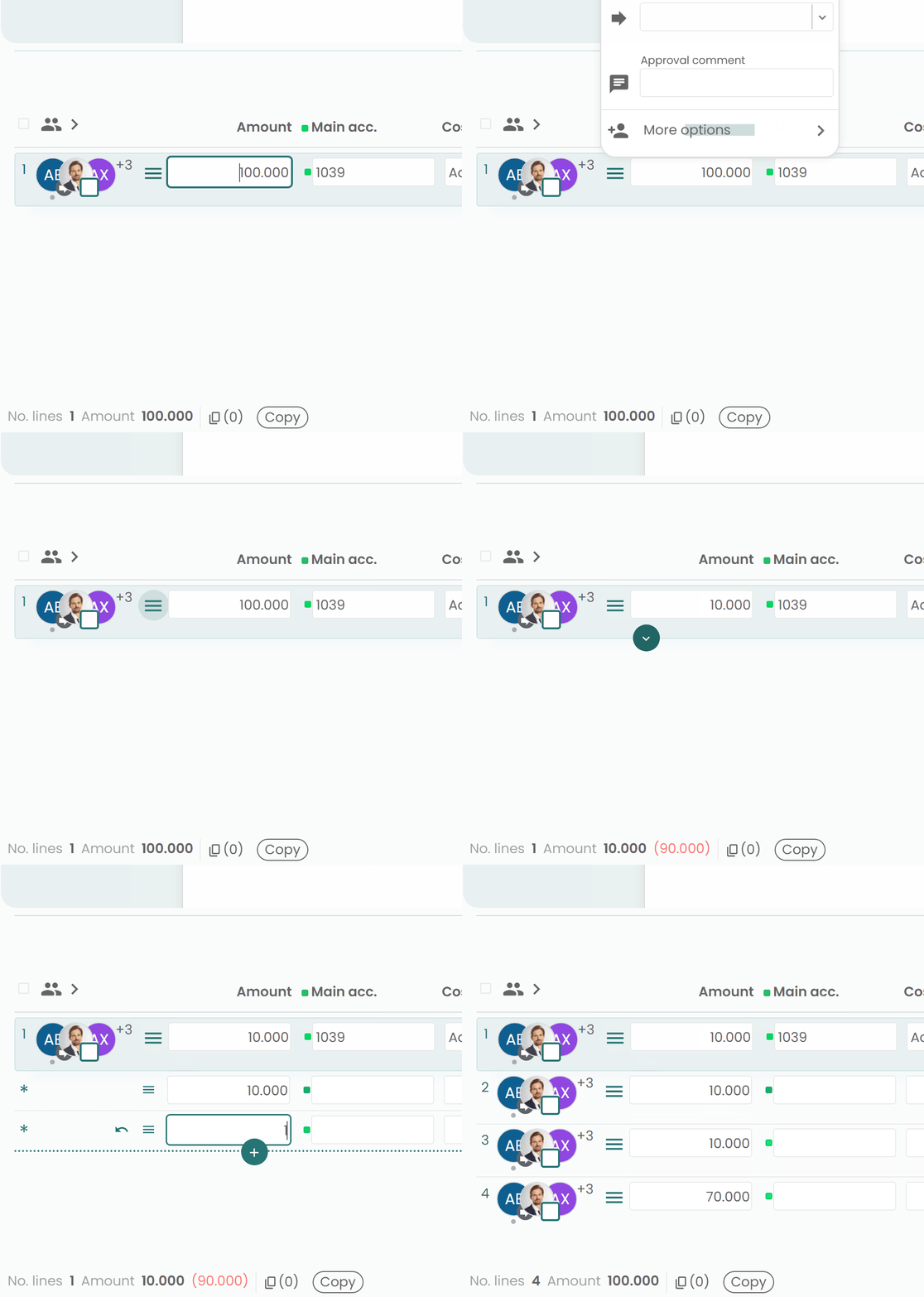
This feature enhances your productivuty by allowing you change the same field on multiple line.
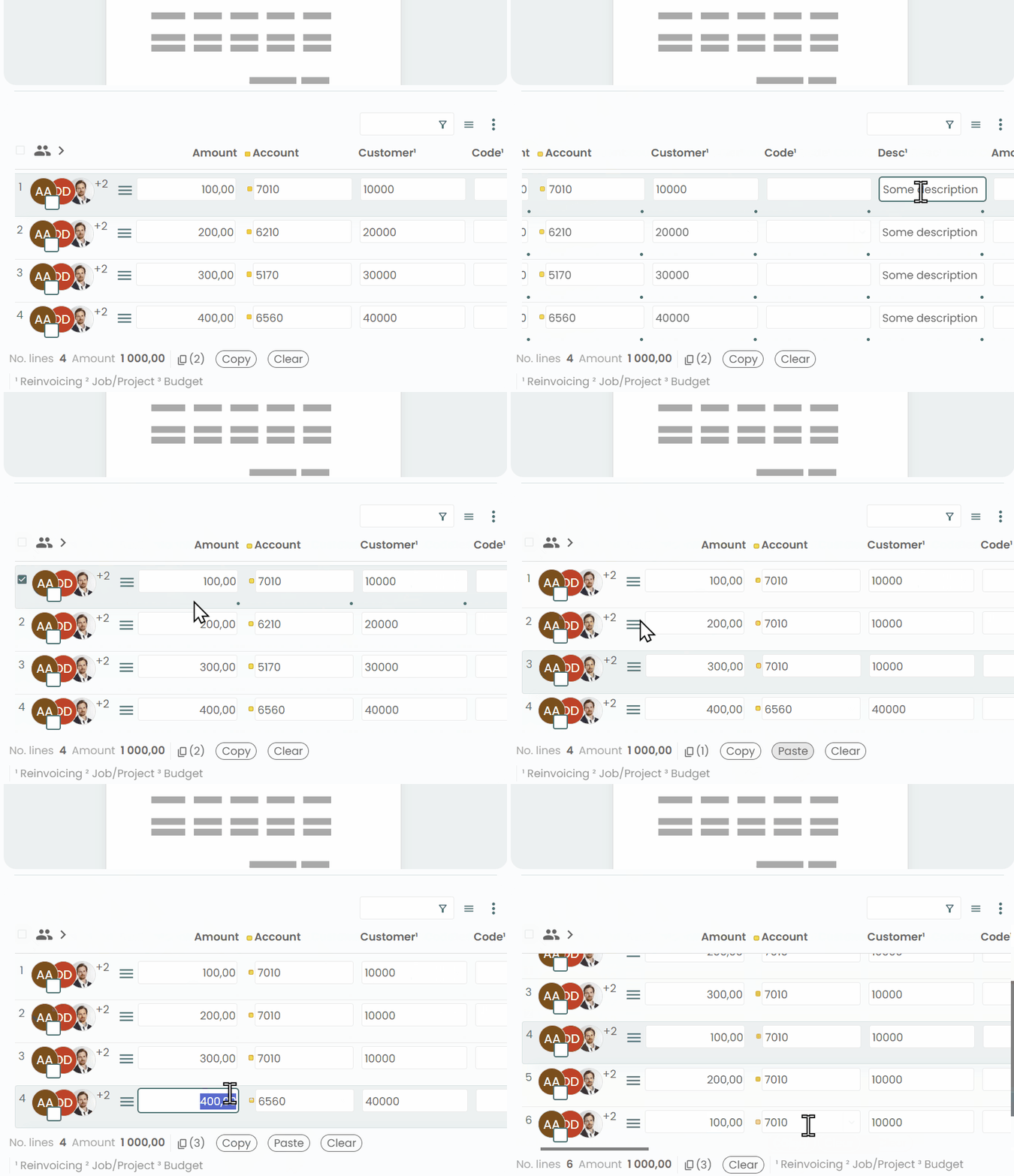
Copy & Paste
Discover how to utilize the multi-select feature for copying and pasting. Here are the different methods:
- One-to-one/many: A single source line can be pasted onto multiple lines.
- N-to-N: Each field from the source line is pasted onto the corresponding field in the target lines.
- Many-to-one: This will divide (split) the target line.
- Use CTRL+CLICK to select or deselect individual fields.
Amount & Trend + Copy & Paste
Utilize the "Amount & Trend" feature to duplicate lines and coding from historical documents.
Line Options
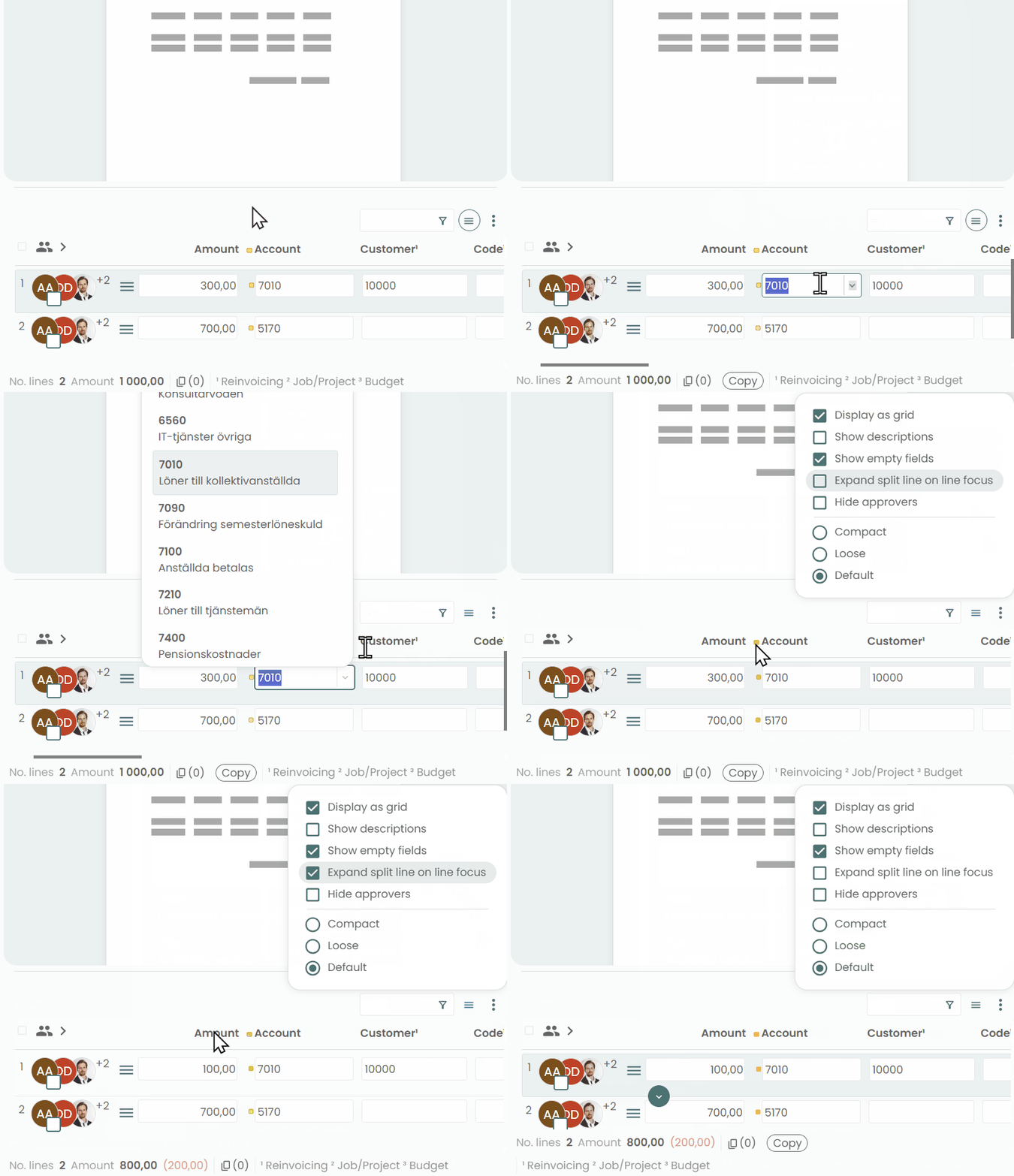
The 3-dots menu above lines provides users with customization options for line display.
- Fields/Grid View: Choose between a tabular display or a list of fields.
- Show empty: Enable the display of fields that do not contain any values. Note that administrators have the ability to set which fields or columns should always be visible.
- Layout density: Adjust the number of approvers displayed and the width of the fields.
Keyboard Navigation
This feature provides a simple and memorable keyboard navigation system. You can use the arrow keys to navigate between fields, menus, and buttons. To select or click, use the Enter or Space keys. To move from the inbox to approval, use Alt+number. To open a menu, use CTRL+Space.